
-2.png)
-2.png)

.png)
.webp)
.png)

.png)


-1.webp)
-1.webp)

.webp)
-1-1.webp)

-2.webp)
-1-1.webp)
-2-1.png)
-1-1.webp)
-1-1.webp)
-1-1.png)



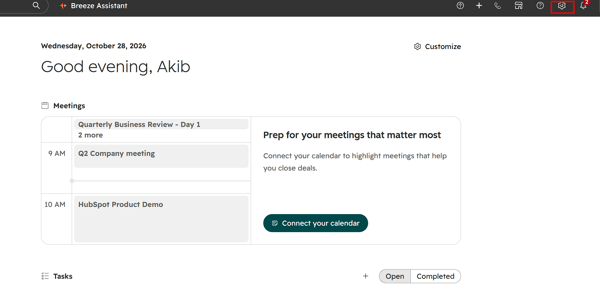
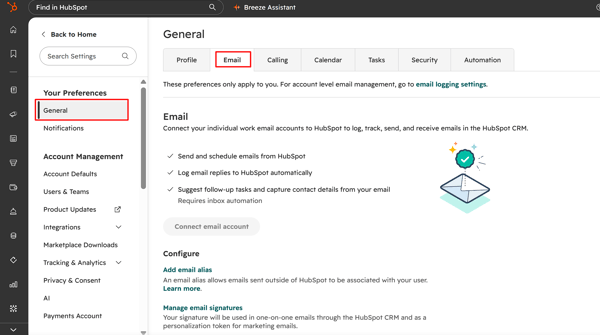
You set up HubSpot email integration from your account settings. Open General, click the Email tab, and choose Connect email account.
The sign-in step is short. The rules behind it need more care, because they decide whether a reply lands on the contact record or stays in your inbox. This guide covers both Gmail and Outlook. It also answers a common admin question: does HubSpot team email integrate with CRM contacts? The short answer is yes, with a few limits.
The steps below follow HubSpot's documentation as of October 2026. It now calls the button Connect email account, while many older guides still say Connect personal email.
What Do You Need Before Connecting?
Your user needs the Personal email access permission, and View-Only seats cannot connect an inbox. HubSpot also does not support some accounts as an individual work email:
-
Gmail accounts that use Google's Advanced Protection Program
-
Microsoft 365 shared mailboxes
-
Accounts that use ActiveSync, which connect through the Exchange option instead
-
Amazon SES and Amazon WorkMail, where HubSpot suggests moving to Gmail or Microsoft 365 if you have problems
Exchange servers must run version 2010 SP2 or later. IMAP is the option for other providers, such as Yahoo or iCloud, and your IT team should confirm the technical requirements first.
One more limit: an email account cannot be both your individual work email and a team email. (Source: "Connect an individual work email")
How Do You Connect Gmail Or Outlook To HubSpot? (Easy Steps)
Go to Settings, open General, click the Email tab, and connect your account. The steps are the same for Gmail and Outlook until HubSpot sends you to your provider's sign-in page.
Step 1: Open Your Email Settings
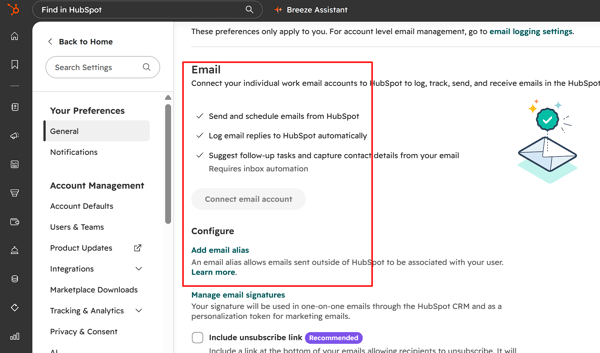
Click the settings icon in the top navigation bar of your HubSpot account. In the left sidebar, click General, then open the Email tab.
Step 2: Click Connect Email Account
Click Connect email account. Older guides call this button Connect personal email.
Step 3: Decide On Inbox Automation
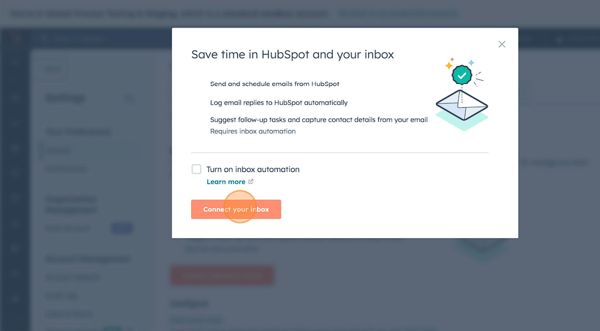
In the dialog box, check Turn on inbox automation if you want HubSpot to read new emails for contact details and follow-up tasks. It processes the body of new emails only, not old ones. Leave it unchecked if your company does not want that. Then click Connect your inbox.
Step 4: Enter Your Work Email Address
Type your work email address in the text field and click Next.
Step 5: Choose Your Provider
Click the Connect button for your provider, such as Connect to Gmail. If HubSpot does not detect your provider, click I want to choose my email provider myself and pick one.
Step 6: Approve The Permissions
Read what HubSpot can access, then click Continue. Sign in to your Google or Microsoft account and approve the permissions. Google shows an Allow button.
Step 7: Confirm The Connection
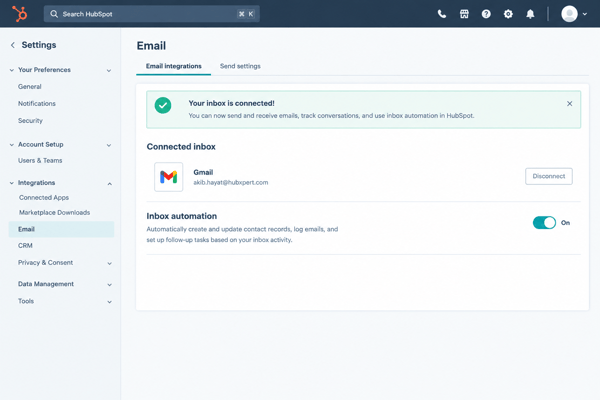
HubSpot returns you to settings and shows a message that your inbox is connected.
What is Different For Gmail?
Google asks you to pick an account and approve what HubSpot can access. HubSpot's notice says it can read, change, create, and send emails from the connected Gmail account. It also stores replies, sent mail, subject lines, and email bodies. If you send from a Gmail alias, set up the alias in Gmail before you connect.
What Is Different For Outlook And Exchange?
Microsoft 365 users sign in with their Microsoft account, approve the connection, and wait while HubSpot verifies it. Exchange Online users should use this Outlook connection, because it uses modern sign-in.
The separate Exchange option is built for servers your company runs itself. It asks for your email address and password, and for a username and Exchange URL if HubSpot cannot find them. If your inbox uses two-factor sign-in, enter an app password.
Which HubSpot Tools Work with Each Email Provider?
Not all HubSpot email integrations are the same. Gmail and Microsoft 365 support the most features, while Exchange and IMAP can’t use the conversations inbox or contact profiles in your inbox.
|
Feature |
Gmail |
Microsoft 365 |
Exchange |
IMAP |
|
Log replies |
Yes |
Yes |
Yes |
Yes |
|
Send emails from the CRM |
Yes |
Yes |
Yes |
Yes |
|
Sequences (paid seat needed) |
Yes |
Yes |
Yes |
Yes |
|
Team email in the conversations inbox |
Yes |
Yes |
No |
No |
|
Contact profiles in your inbox |
Yes |
Yes |
No |
No |
|
HubSpot Sales Office 365 add-in |
No |
Yes |
No |
No |
(Source: "Requirements to use HubSpot tools with your connected email")
Gmail users add the HubSpot Sales Chrome extension. Outlook users add the HubSpot Sales Office 365 add-in. It needs a Microsoft 365-hosted account, and it runs in Outlook for Mac, Outlook for Windows, or Outlook on the web. It does not work with Outlook installed from the Microsoft Store or with Microsoft 365 from GoDaddy.
Admins can deploy either tool to many users at once, so do that before reps connect inboxes one by one. (Source: "Install HubSpot Sales for Gmail and Office 365")
How Does HubSpot Log Emails to The Right Contact?
HubSpot logs an email to a contact's timeline when the message goes to or from an existing contact and your logging rules allow it. The HubSpot CRM email integration is connected per person, but the logging rules apply to every user in the account.
To find the rule, click the settings icon, go to Objects under Data Management, select Activities, and open the Email Log & Track tab. You need Account access permission to change it.
You get three options:
-
Log replies only: a reply logs only if it belongs to a thread already logged in the CRM. New incoming messages stay out.
-
Log all emails (from known contacts): this is the default for all accounts. Emails to and from existing contacts log, even when you send them from an email client or phone app. Emails you send outside HubSpot to people who are not contacts do not log.
-
Create new contacts from logged emails (beta): this adds contacts for new senders. A Super Admin must opt the account into the beta.
Check which option your account uses before you train your team. The never log list also helps, because it keeps chosen addresses and domains out of the CRM.
When a contact starts a new thread, HubSpot credits the email to the user whose address is on it. If several users are on it, the contact owner gets the credit. (Source: "Manage contact email logging rules")
Why Do Some Replies Not Appear on The Contact Record?
A reply fails to log when it breaks one of HubSpot's thread rules. Under the replies-only rule, the original email must come from the CRM. It can also come from your inbox, if the Sales extension or add-in is on and the Log box is checked. The reply must keep the same subject line and reach a connected inbox.
|
What happened |
Why it does not log |
What to do |
|
A contact starts a new email thread |
Under replies only, new threads stay out |
Reply with the Log box checked or add your HubSpot BCC address, or switch to Log all emails |
|
A contact changes the subject line |
HubSpot no longer sees it as the same thread |
Forward the reply to your HubSpot forwarding address |
|
You moved from Gmail to Microsoft 365 with active threads |
Replies stop logging, and contacts in a sequence are not unenrolled automatically |
Reconnect the inbox with the correct provider |
|
You picked the wrong provider when connecting |
Emails do not log |
Check with IT who hosts the address, then reconnect |
(Source: "Understand reply-only email logging rules")
Test before you roll it out. Email someone who already exists as a contact, reply from that address without changing the subject, and open the contact's timeline. Repeat the test once for each provider your team uses.
Does HubSpot Team Email Integrate with CRM Contacts?
Yes. A team email connected to the conversations inbox logs messages to contact records. HubSpot also creates a new contact when the sender is not in your CRM yet. Team email suits shared addresses such as info@ or support@, and every user with inbox access sees the incoming messages. A forwarded message logs to the original sender's contact record by default. (Source: "Connect channels to the conversations inbox")
You can connect a Gmail or Office 365 account directly. A Google Group, an alias, or another mail host goes through the Other mail account option, where you forward messages into the inbox. Messages received before you connected the address do not appear. Each address gets one role. If you send one-to-one emails and also work a shared inbox, you need two different addresses.
What Does Email Tracking Add & What Can it Miss?
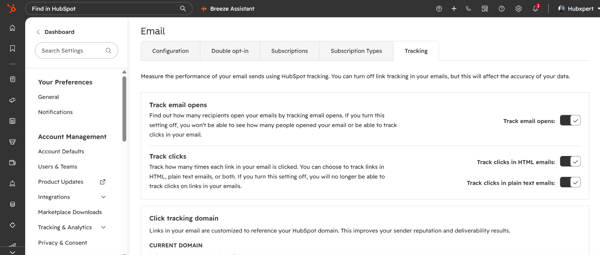
Tracking shows when a contact opens an email or clicks a link, but it can miss opens and cannot show a forward. HubSpot adds an invisible one-pixel image to tracked emails. If the recipient's email client blocks images, HubSpot cannot record the open. That happens with plain-text emails, clients that do not download images, and corporate filters that strip them. When the contact later clicks a link or replies, HubSpot can infer the open.
Click tracking for one-to-one emails needs an assigned Sales Hub seat. Links go through a HubSpot domain unless you connect your own tracking domain. A web address typed as plain text is not tracked, and clicks in plain-text emails are not tracked either. Some countries, including France and Italy, require consent before you track opens and clicks, and that duty sits with the sender. (Source: "Understand HubSpot email tracking")
When Does HubSpot Email Integration Need More Than The Native Setup?
The native connection handles one person's inbox and one account-wide set of logging rules. Most teams on a single provider can stop there.
Gaps show up when a team adds other email tools. Third-party HubSpot email integrations such as Mixmax or Yesware bring their own sequences and tracking, so one email can be tracked twice. Decide which tool owns opens, clicks, and replies, then build a HubSpot integration that passes those events to the right records.
The second gap is a mixed team. Reps on Gmail, Microsoft 365, and Exchange get different tools, as the table above shows. A HubSpot admin can set one logging rule and one never log list for everyone, then test each provider before launch.
FAQs
Can I connect more than one email account to HubSpot?
Yes. HubSpot lets you connect several individual work emails, such as one Gmail address and one Microsoft 365 address. You can send from any of them. Each address needs its own connection, and each one should belong to a single person. Connect them one at a time from the same Email tab.
Do I need a paid HubSpot plan to connect Gmail or Outlook?
No. Connecting an email account is available on all HubSpot products and plans, including the free tools. Some features that rely on it need paid seats. Sequences, for example, require a paid Sales Hub or Service Hub seat. Check each rep's seat type before launch, since a rep without a paid seat cannot use them.
Can my coworkers see the emails I log?
Yes. HubSpot says the correspondence you track or log is visible to other users in your HubSpot account. Do not connect an address you use for private mail. Super Admins can also opt in to a beta that logs emails without storing the body text.
Will connecting my inbox import my old emails?
HubSpot's connection guide does not describe an import of old emails. Inbox automation scans only new emails, and a team email will not show messages received before you connected it. To save an older message, forward it to your HubSpot forwarding address so it logs to the CRM.
Final Thoughts
Connecting the inbox is the easy part. Before you roll it out, choose one logging rule for the account. Decide which addresses are individual and which are team. Then send a test email from each provider your team uses. Review your HubSpot CRM email integration now and then, because a changed subject line or a switched provider can stop replies from logging.
Old threads are not part of the inbox connection. If you are moving from another CRM, email history travels as activity history in a HubSpot migration, so confirm it is in the scope.
Senior RevOps Strategist at Hubxpert

Fazle Rabbi
Table of Contents:

Subscribe to our newsletter
How to Set Up HubSpot Email Integration With Gmail or Outlook
Connect HubSpot CRM integration with business intelligence tools so reporting lives in your warehouse. Compare reverse ETL and database integration routes.

Modern Retro Web Design & How to Keep It Accessible
Mix modern retro web design with modern minimalist web design and modern dark web design, while keeping the clean modern web design rules firmly intact.

Modern Homepage Design for Layouts, Dashboards & Forms
Rework a modern homepage design with intent, covering modern web dashboard design, modern web menu design and the modern web form design choices that convert.

Modern Web Design Templates & Layout Patterns
Compare modern web design templates and layout patterns, see modern website layout ideas you can reuse, and know when a custom layout beats a stock template.

Human Computer Interaction Web Design Principles
Learn how human computer interaction web design decisions shape usability, covering interaction design frameworks, interface patterns and building rich web UI.

Modern Web App Design & UI Patterns That Scale
See how modern web app design differs from a marketing site, covering modern web application design and modern web app UI design for dense data dashboards.
-
How to Set Up HubSpot Email Integration With Gmail or Outlook
hello
-
Modern Retro Web Design & How to Keep It Accessible
hello
-
Modern Homepage Design for Layouts, Dashboards & Forms
hello
-
Modern Web Design Templates & Layout Patterns
hello
-
Human Computer Interaction Web Design Principles
hello
-
Modern Web App Design & UI Patterns That Scale
hello