

-2.png)


-2.png)


.png)

.webp)
.png)






.png)






-1.webp)
-1.webp)

.webp)

-1-1.webp)

-2.webp)

-1-1.webp)

-2-1.png)
-1-1.webp)
-1-1.webp)
-1-1.png)






Serenity Pro
Theme - Documentation
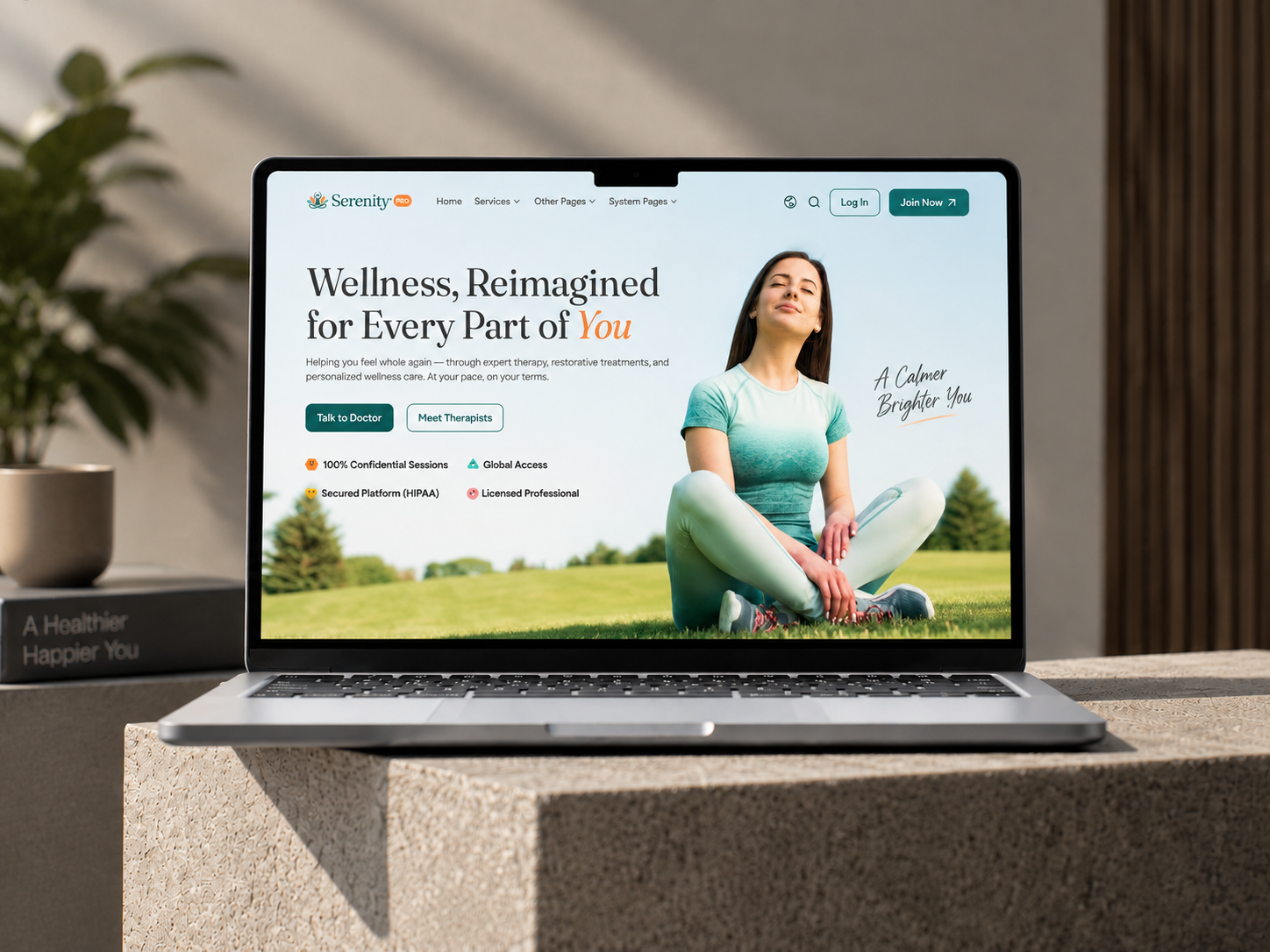
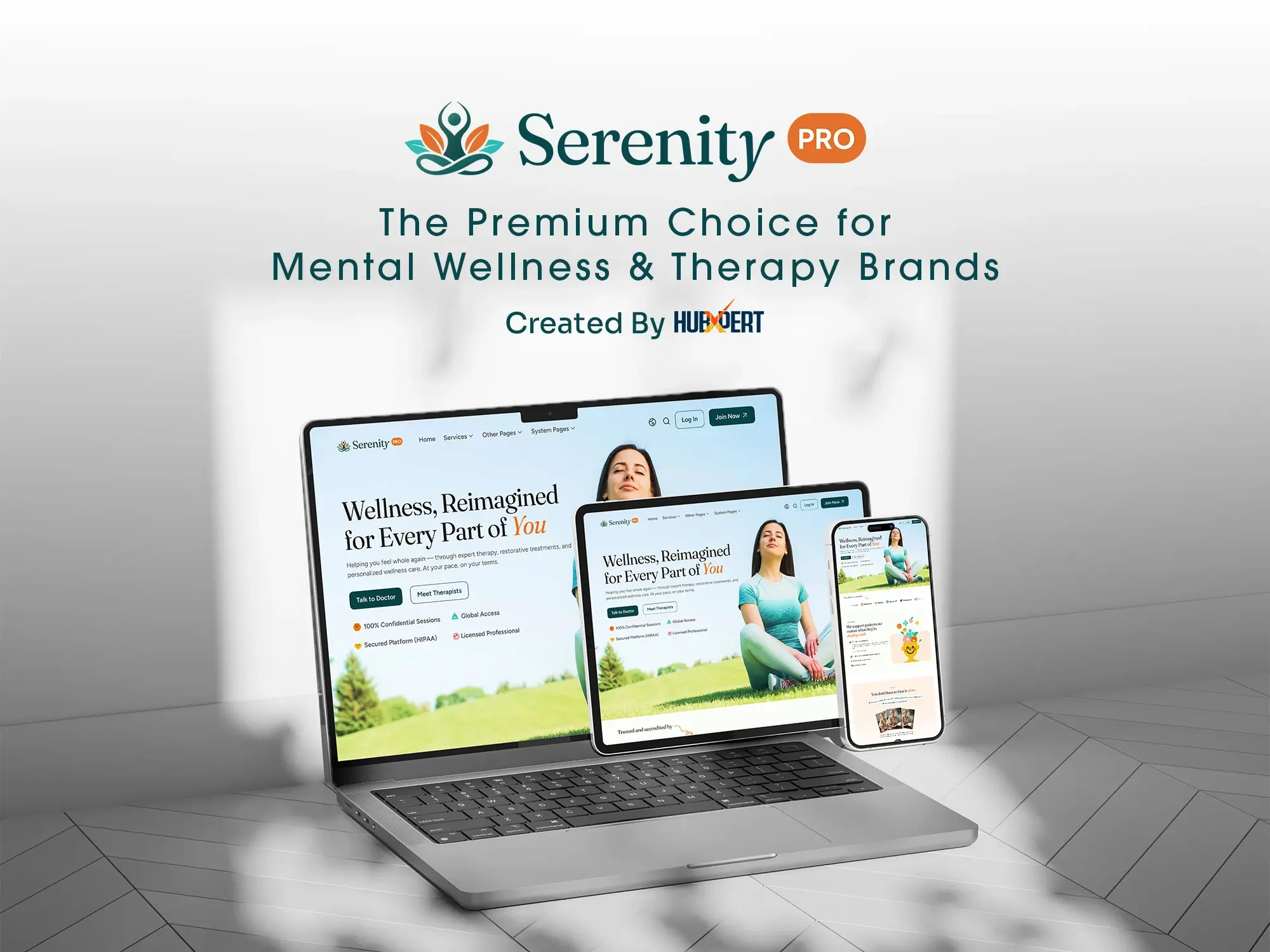
Serenity Pro is a beautifully designed, modern website theme dedicated to wellness and mental therapy. Designed to evoke calm and safety, it provides a comprehensive digital storefront that highlights expert therapy, restorative treatments, and personalized wellness care.
1. Setup
Once your HubSpot account is set up, you can acquire Serenity Pro through HubSpot's Marketplace. This will automatically install the theme in the HubSpot portal you are logged into.
After installation, navigate to Settings → Content → Themes & Modules → Themes and set Serenity Pro as your active theme. We recommend cloning it as a Child Theme so your customizations are preserved across future updates.
2. Theme Customization
Theme Settings allow you to apply widespread design changes to your entire website from one central place.
How to Access Global Theme Settings
2.1. Global Settings
To get started customizing Serenity Pro, follow these steps:
- In your HubSpot account, click the Settings icon in the main navigation bar.
- In the left sidebar menu, navigate to Content → Themes & Modules → Themes.
- Hover over Serenity Pro and click "Edit theme".
- The Global Theme Settings panel will open on the right side of the screen.
2.2. Group of Settings
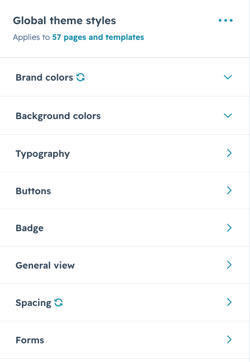
The theme global settings are organized into 8 groups:
| Group | What it controls |
|---|---|
| Brand Colors | Primary, secondary, tertiary, and quaternary palette |
| Background Colors | Light, dark, and accent surface colors |
| Typography | Fonts, text colors, heading sizes (desktop + mobile), body text |
| Buttons | Primary, secondary, and tertiary button styles + global corner radius |
| Badge | Badge text, background, border, and spacing |
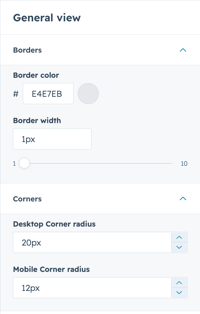
| General View | Global border and corner radius for cards and UI elements |
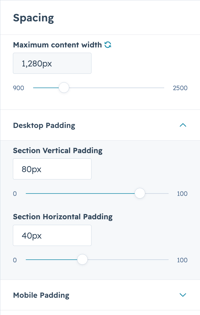
| Spacing | Content width and padding for desktop and mobile |
| Forms | Form background, field styles, and label styles |
2.3. Understanding The Settings
The Fitmax theme settings are broken down into seven main groups to make customizing your site a breeze:
- Brand Colors: Set the primary and secondary colors that define your brand identity. These selections will act as the default palette across your site.
- Background Colors: Establish the default background colors used for various sections and page wrappers to ensure a cohesive look.
- Typography: Complete control over your text. Here you can set specific font overrides for headings and body copy, including font families, colors, responsive sizes, and line heights.
- Buttons: Complete settings for your calls-to-action. Customize your button colors, fonts, border radiuses, and hover-state styling.
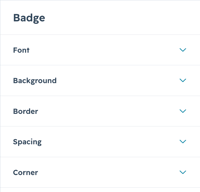
- Badge: The global badge settings allow you to apply universal styles (like fonts, colors, background, spacing, and radius) across your entire website without needing to touch CSS styles for per module.
- General view: Key surface settings and default visual behaviors that dictate the overall layout and structural appearance of your website.
- Spacing: Global controls for the default margins and padding used across your website's sections and containers to maintain consistent breathing room.
- Forms: Global color and styling settings for all form inputs, labels, and submit buttons.
3. Typography
Serenity Pro gives you full control of your theme typography — Primary Font, Secondary Font, Text Colors, Headings, and Body.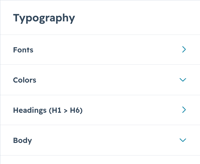
3.1. Fonts
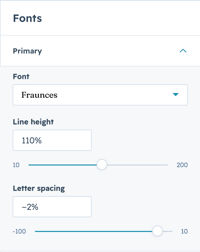
Primary Font — Fraunces:
Used for titles, headings, and display text. A contemporary serif with a calming character that fits the wellness brand. Here you can control your theme's primary font family, style, and size.
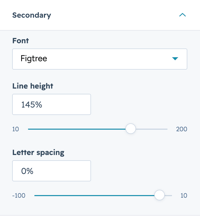
Secondary Font — Figtree:
Used for body text, paragraphs, and UI labels. Clean, modern, and highly readable at all sizes.
Both fonts load from Google Fonts. You can swap either for any Google Font or upload a custom font.
3.2. Colors
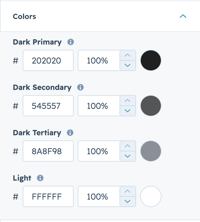
In Colors you will find four text color options that cover both light and dark contexts:
- Dark Primary — main body and heading text on light backgrounds
- Dark Secondary — secondary or muted text
- Dark Tertiary — captions or hint text
- Light — text on dark or colored backgrounds
3.3. Headings
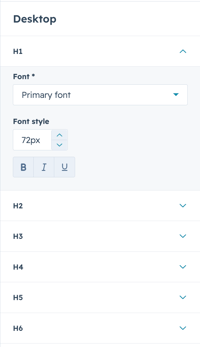
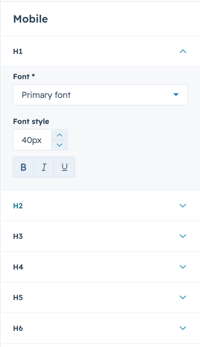
In the Headings section you can set different options for each heading level (H1–H6). For each level, independently control size, weight, line height, and letter spacing — with separate tabs for Desktop and Mobile.
3.4. Body
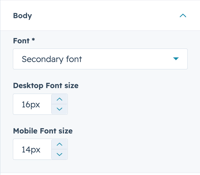
We used our Secondary Font (Figtree) as the body text of the theme. You can also control the default body text size directly from this option.
4. Buttons
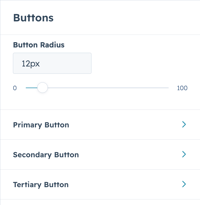
Serenity Pro features three core button styles — Primary, Secondary, and Tertiary — each with extensive customization controls.
Global Corner Radius: One slider sets the border-radius for all buttons at once (default: 12px), keeping your design consistent across every button on the site.
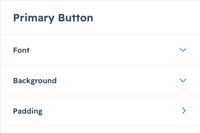
Each button type exposes: Font (family, size, weight), Background (fill color + hover color), Border (Secondary only — color and width), Padding (desktop and mobile independently), and Hover Effects with animated fill slide.
5. Badge
Serenity Pro lets you control your global badge style from one place — no need to style badges per module.
Badge controls include:
- Text — color (default: brand primary
#08484C) - Background — color + opacity with frosted-glass blur (backdrop-filter)
- Border — color and width
- Spacing — horizontal and vertical padding
- Radius - badge corner radius
6. General View
In General View you can adjust the global border and corner radius for cards, containers, and UI elements across the entire theme. Changes here cascade to all card-style components instantly.
7. Spacing
Adjust all content width and padding from one place. Set your desktop padding and mobile padding independently — changes apply theme-wide immediately.
8. Forms
Serenity Pro gives you complete forms design control in one central place. Control your forms background, field styles, and labels. Each aspect can be customized in detail.
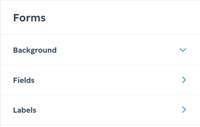
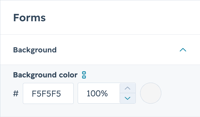
8.1. Background Color
You can adjust the background color of your theme forms here. Full opacity control is available so you can set a solid or semi-transparent form background.
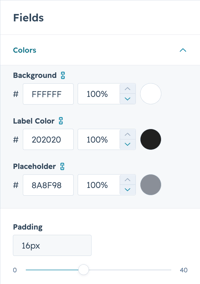
8.2. Fields
Customize your form fields in Serenity Pro. Adjust the field font, background color, border style, and focus state from this section.
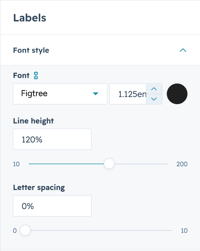
8.3. Labels
You can specifically customize the form labels — control label font size, weight, and color independently from field text.
9. Modules Overview
Serenity Pro includes 44 modules organized into 12 categories. Use this reference to find the right module for each section of your page.
| Category | Modules |
|---|---|
| Global | Header, Footer |
| Hero & Page Intros | Hero Banner, Preview Hero, Contact Us Hero |
| Content Sections | About Us Section, Values Section, How It Works, Our Steps, Wellness Journey, Our Availability |
| Cards & Grids | Cards Showcase, Highlights Cards Grid, Decoration Card, Service Tab Cards, Service Overview |
| Features | App Feature Showcase, Our Impact, Impact Stats, Featured Program |
| Blog | Blog Preview, Blog Menu, Blog Listing Post Filter, Blog Listing Pagination, Related Blogs, Featured Blog, Blog Social Link |
| Testimonials | Testimonial Slider, Single Testimonial Slider |
| Pricing & Courses | Pricing Plans, Course Details |
| Lead Gen | Book A Meeting, CTA Card Section |
| Trust | Trusted Partner, Logo Cloud Gallery |
| Interactive | Filterable Slider, FAQ, Location Map |
| Utility | Button, Search, Search Results, Thank You, Global Cursor |