



-2.png)

-2.png)

.png)

.webp)

.png)






.png)




-1.webp)
-1.webp)

.webp)
-1-1.webp)


-2.webp)
-1-1.webp)

-2-1.png)
-1-1.webp)
-1-1.webp)
-1-1.png)






This guide shows how to capture and score leads with HubSpot Forms and Typeform. Typeform asks one question at a time, so more people finish it, and HubSpot scores what they send in, so sales knows who to call first. You will see how the two connect, how to set up the integration step by step, and how to score leads so the best ones reach your team first.
Understanding Lead Capture and Scoring
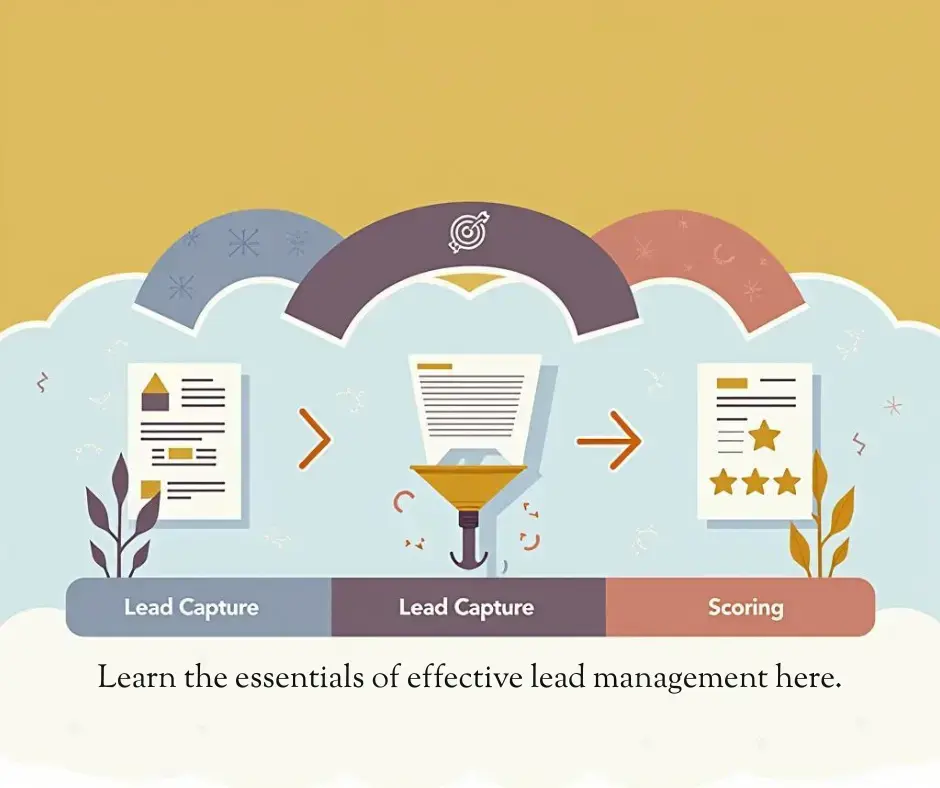
Lead capture collects information from people who show interest in what you sell, through a website form, a webinar sign-up, or a downloadable resource. Lead scoring then puts a number on each lead, based on how likely they are to buy, so your team spends its time on the prospects most likely to convert. Organizations that score their leads see a 77% lift in lead generation ROI, according to MarketingSherpa. Scoring is what lets a small sales team work a long list in the right order.
The Role of HubSpot Forms
HubSpot’s form builder is built for lead capture, and every submission writes straight into the CRM. HubSpot Forms give you:
- Customizable Fields: Tailor forms to collect specific data, such as name, email, or company size.
- Smart Fields: Pre-fill fields with known CRM data to reduce user effort.
- Conditional Logic: Show or hide fields based on responses, creating a personalized experience.
- Analytics: Track submission rates, drop-offs, and conversions to optimize performance.
- CRM Integration: Automatically sync form submissions to HubSpot’s CRM for immediate follow-up.
Forms that write straight into a CRM remove the manual data entry step. HubSpot forms embed on websites, landing pages, and emails, so you can capture leads at every touchpoint.
The Power of Typeform
Typeform takes lead capture to the next level with its conversational, interactive forms. Have you ever abandoned a form because it felt too long or boring? Typeform’s design addresses this by presenting one question at a time, mimicking a natural conversation. Key features include:
- Conversational Interface: One question at a time keeps people moving. Typeform reports completion rates up to 20% higher on its conversational and AI-assisted forms.
- Conditional Logic and Branching: Tailors questions based on user responses, ensuring relevance.
- Rich Media Support: Incorporates images, videos, or GIFs to enhance engagement.
- Customizable Design: Aligns forms with your brand’s look and feel.
- Analytics: Provides insights into completion rates and user behavior.
Typeform’s approach suits B2B businesses and anyone selling to younger, tech-savvy buyers who expect some interactivity.
The Typeform-HubSpot Integration: A Game-Changer
The Typeform-HubSpot integration connects Typeform’s forms to HubSpot’s CRM, so a submission becomes a scored contact without anyone retyping it.
Here is how it works:
- Create a Typeform: Design an interactive form to collect lead data, such as contact details or specific needs.
- Integrate with HubSpot: Connect Typeform to HubSpot to automatically send submissions to your CRM.
- Map Fields: Align Typeform questions with HubSpot fields (e.g., email, job title) for accurate data transfer.
- Score Leads in HubSpot: Use HubSpot’s lead scoring to assign points based on criteria like industry, company size, or form responses.
- Nurture Leads: Create automated workflows in HubSpot to follow up with leads based on their scores.
Automating the handoff means every lead is captured, scored, and followed up without anyone moving data by hand, which saves time and cuts the errors that come with re-keying.
Setting Up the Integration
Setting this up takes about an hour. Follow these steps:
- Build Your Typeform:
- Sign up at Typeform.com (free plans available).
- Create a form with questions tailored to your audience, using conditional logic for personalization.
- Test the form to ensure a smooth user experience.
- Connect Typeform to HubSpot:
- In Typeform, navigate to Connect > Integrations and select HubSpot.
- Authenticate your HubSpot account and map form fields to HubSpot properties.
- Save and test the integration to confirm data flows correctly.
- Embed the Form:
- Copy Typeform’s embed code and place it on your website, landing page, or HubSpot email.
- Make sure the form works on mobile, for accessibility and for the half of your traffic that never sees a desktop.
- Configure HubSpot Lead Scoring:
- In HubSpot, go to Settings > Properties > Lead Scoring.
- Define criteria (e.g., +10 points for “CEO” job title, +5 for visiting a pricing page).
- Set thresholds for marketing-qualified leads (MQLs) and sales-qualified leads (SQLs).
- Create workflows to trigger actions (e.g., email campaigns) based on scores.
Most setup problems come down to unmapped fields and a form nobody tested on a phone, and both are quick to catch before launch.
HubSpot Lead Scoring: Prioritizing the Right Leads

HubSpot lead scoring puts points on leads from demographic and behavioral data, so your sales team works the high-potential prospects first. For example:
- Demographic Scoring: Assign points for attributes like job title (+10 for “Director”), company size (+5 for >100 employees), or industry (+8 for “Tech”).
- Behavioural Scoring: Award points for actions like downloading a whitepaper (+15), attending a webinar (+20), or visiting key pages (+5).
Scoring pays off in the pipeline: leads above your threshold get a call, and the rest keep getting useful content until they move. High-potential, for most teams, means budget, authority, need, and timeline (BANT).
Example Scoring Model
|
Criteria |
Points |
|
Job Title: C-Level |
+10 |
|
Company Size: >100 Employees |
+5 |
|
Industry: Technology |
+8 |
|
Downloaded Whitepaper |
+15 |
|
Attended Webinar |
+20 |
|
Visited Pricing Page |
+5 |
|
No Engagement in 30 Days |
-10 |
Best Practices for Smart Lead Capture

These are the habits that keep conversion rates up:
- Keep Forms Concise: Ask only for the information you will act on. Every extra field costs you completions.
- Use Conditional Logic: Tailor questions based on user responses to keep forms relevant. For example, if a lead selects “Marketing” as their department, ask about their marketing goals.
- Optimize for Mobile: Make every form responsive, since a large share of B2B buyers research on a phone.
- Use Rich Media: Add a short video or an image in Typeform where it explains something the question cannot. It gives people a reason to keep going.
- Refine Scoring Regularly: Review the criteria each quarter against closed deals. If the scores do not match who actually buys, the model is wrong, not the sales team.
- Personalize Follow-Ups: Use what Typeform captured, such as the pain point a lead picked, to shape the first HubSpot email. A relevant first email gets opened more often than a generic one.
Analyze Performance: Use HubSpot’s form analytics and Typeform’s insights to find the question people quit on, then shorten or move it. A form that loses half its visitors at one step is telling you which step to fix.
Trends in Lead Capture and Scoring for 2026
Four things are changing how teams capture and score leads:
- AI-Driven Personalization: HubSpot’s AI agents, now branded Agent Hub, can adapt what a form asks and how leads are scored, based on what the visitor has already done.
- Interactive Content: Video forms and quizzes, supported by Typeform, are gaining traction. Why might interactive content appeal to modern buyers?
- Data Privacy Compliance: Under GDPR and similar rules, say plainly what you collect and why, and keep the consent record with the contact.
Account-Based Marketing (ABM): More B2B teams now score the account rather than the individual, so a buying committee adds up instead of splitting the score across five contacts. See how we built one for a B2B team.
Conclusion
Typeform captures the lead in a form people finish, and HubSpot scores it and starts the follow-up, so nothing waits in an inbox. Set the form up this week, map the fields, and set your first scoring rules on what you already know about your best customers. If you want this built for you, HubXpert runs HubSpot integrations end to end.
Founder & CEO @ Hubxpert. My goal is to make every company using HubSpot succeed in their marketing organisation and automation.

Ratul Rahman
Table of Contents:

Subscribe to our newsletter

Modern Website Design Examples & What Makes Them Work
Browse modern website design examples and modern looking websites, and see exactly what separates a fast, current site from one that already feels dated.

Interactive Web Design Templates & Examples to Study
See interactive web design templates and the best interactive web design inspiration, then compare interactive web page design examples before you build.

Interactive Elements in Web Design & Where to Stop
Add interactive elements in web design that earn their place, covering micro interactions, interactive maps, interactive timelines and knowing when to stop.

3D Web Design Templates & Examples You Can Reuse
Browse 3D web design templates and examples, plus where to find free downloads, and see how 3D web page design lifts a site without slowing the site down.

3D Web Design Tools & Software Compared for 2026
Compare 3D web design tools and web based 3D design software, and see where 3D models and 3D assets for web design fit your existing front-end build pipeline.

HubSpot Onboarding Cost: What the Fee Really Covers
See what HubSpot onboarding cost covers, how onboarding fees get quoted and how to compare implementation quotes line by line before you commit to a partner.
-
Modern Website Design Examples & What Makes Them Work
hello
-
Interactive Web Design Templates & Examples to Study
hello
-
Interactive Elements in Web Design & Where to Stop
hello
-
3D Web Design Templates & Examples You Can Reuse
hello
-
3D Web Design Tools & Software Compared for 2026
hello
-
HubSpot Onboarding Cost: What the Fee Really Covers
hello