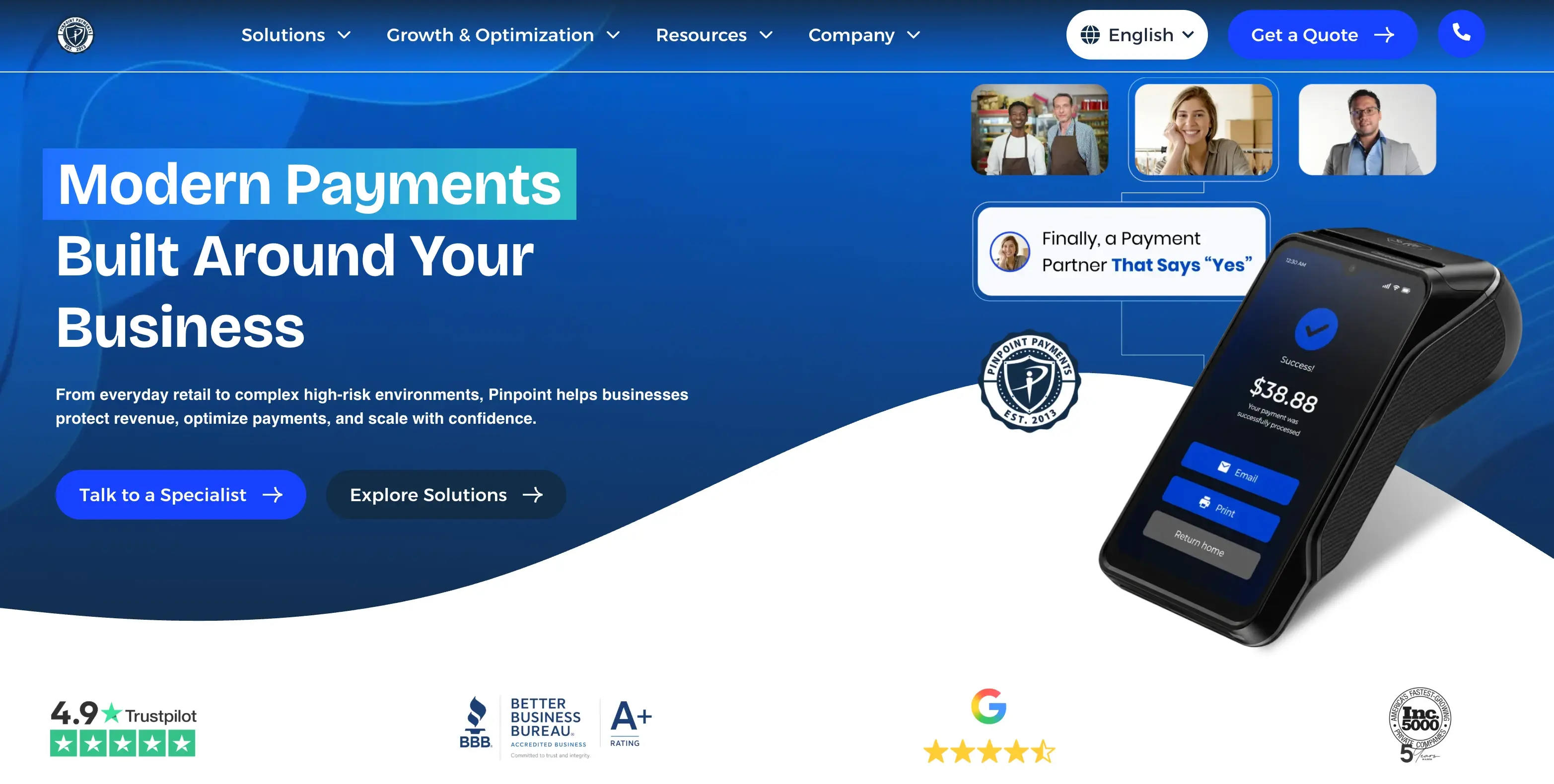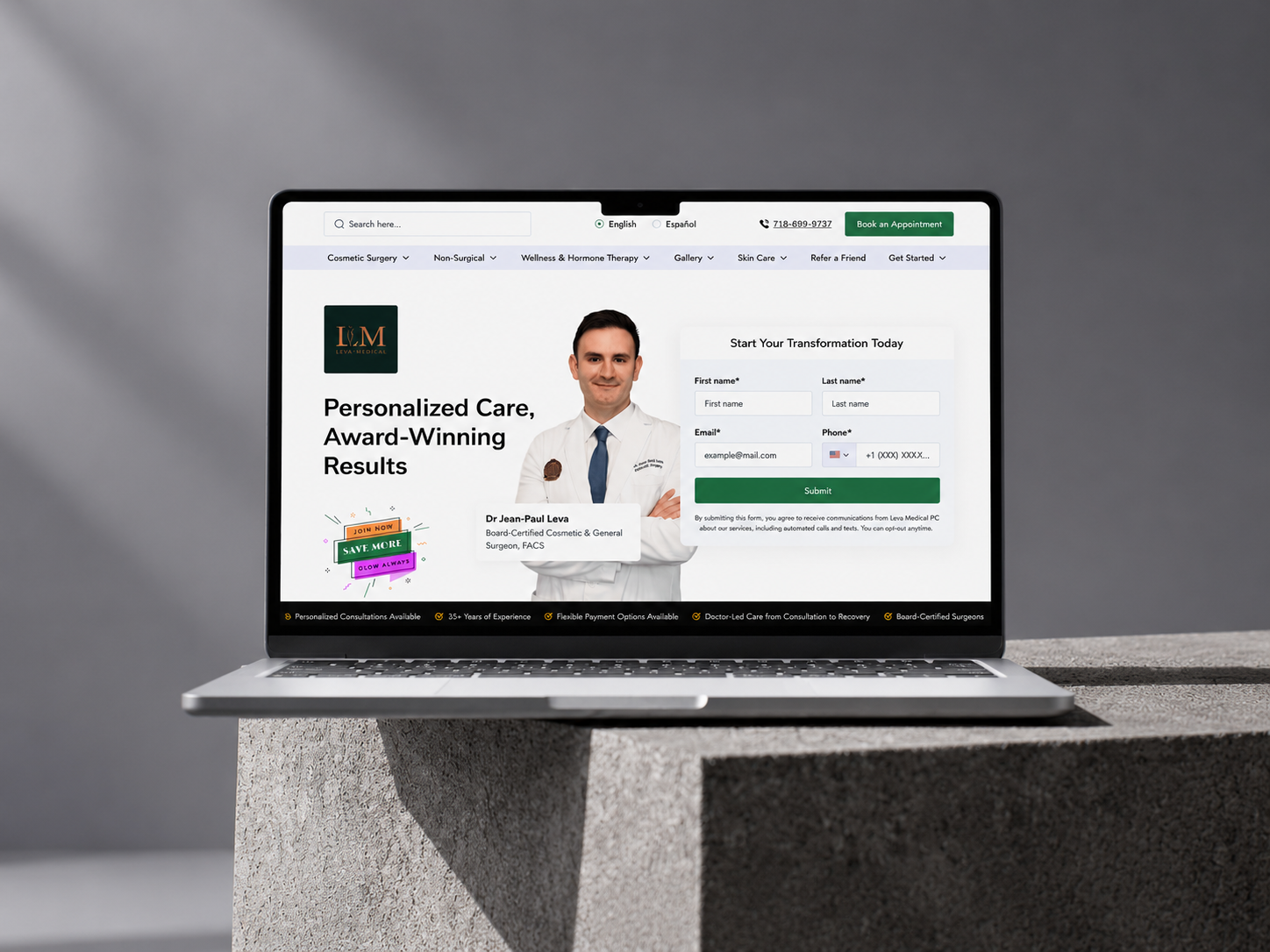


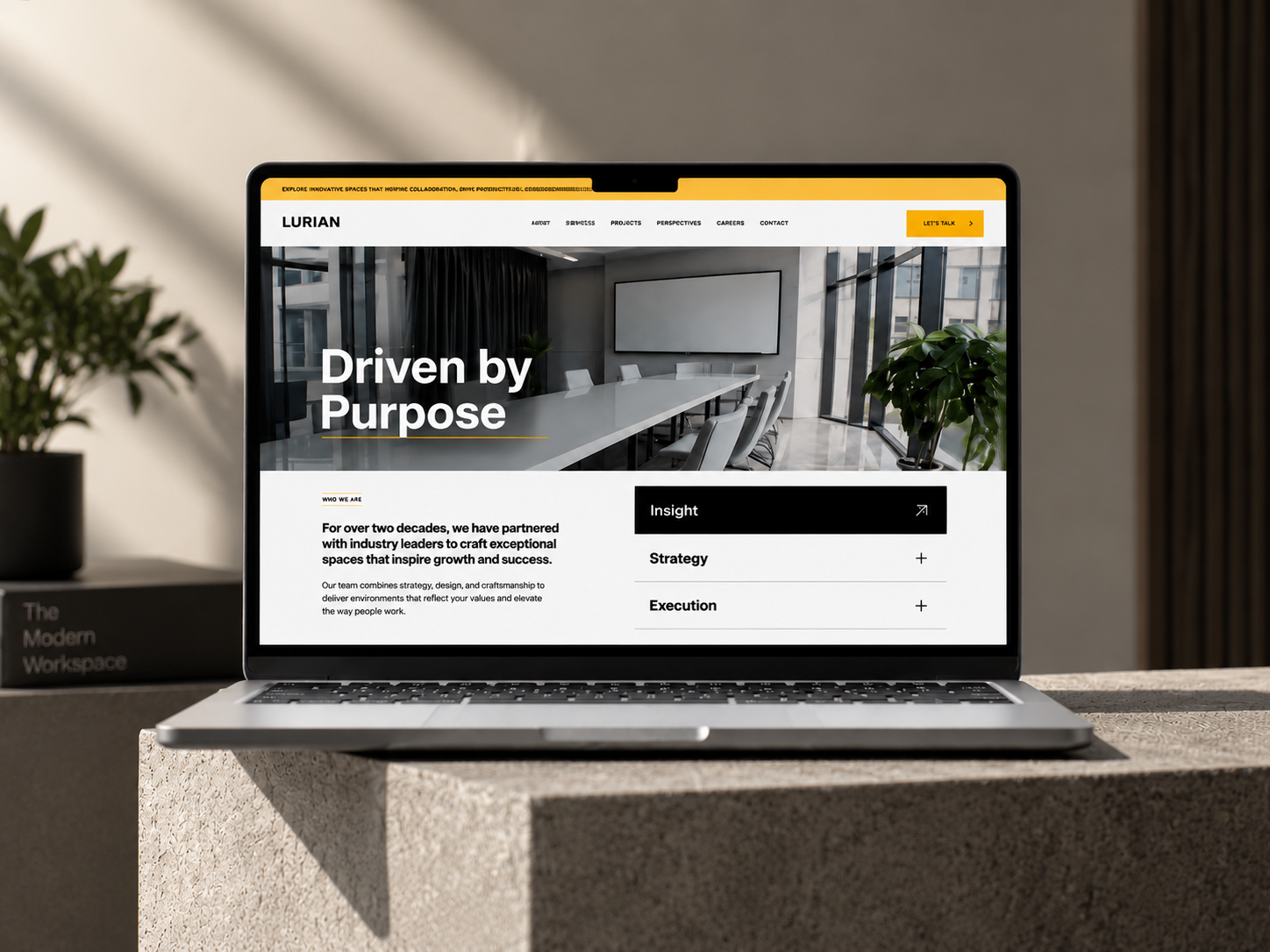
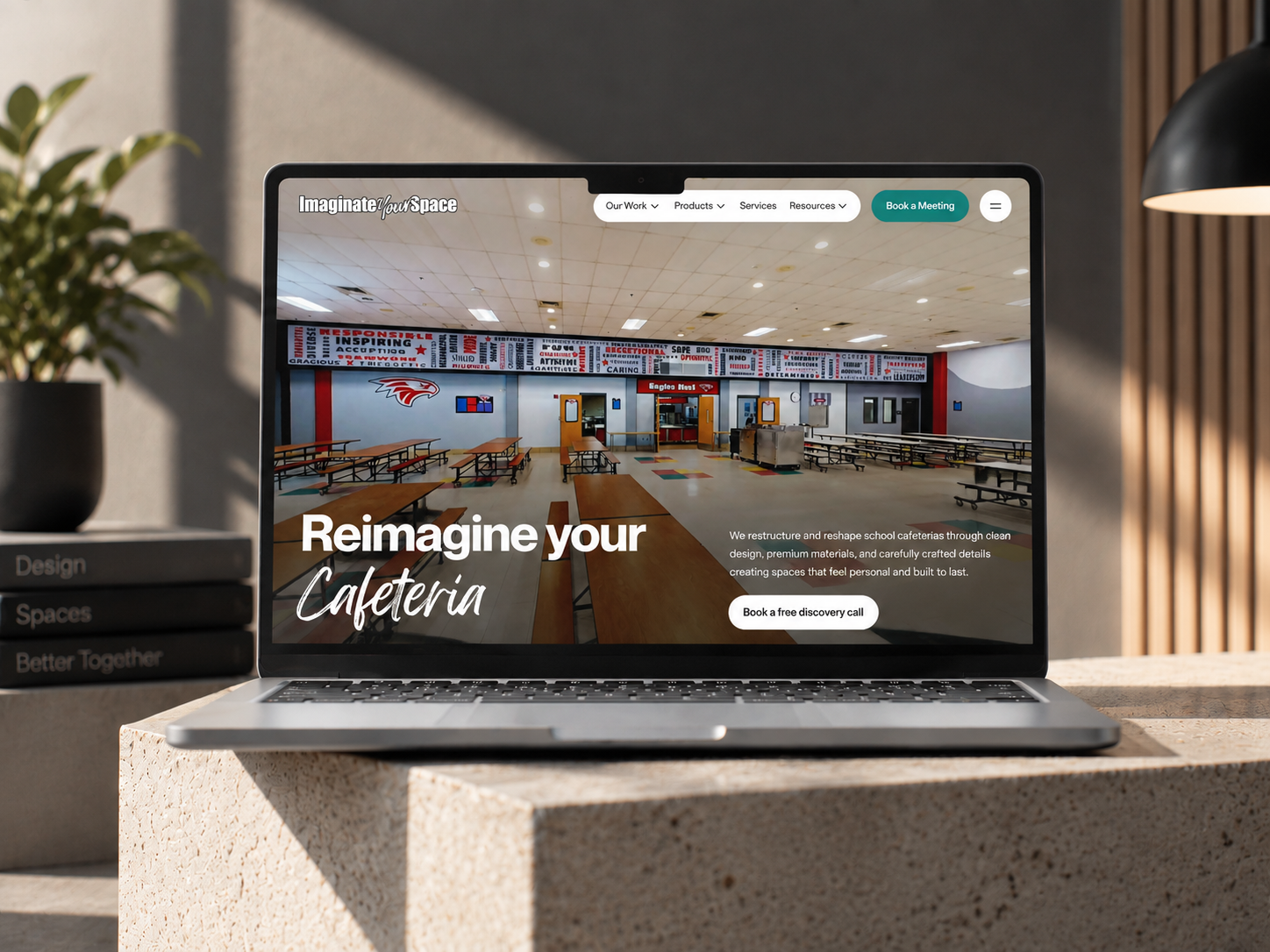

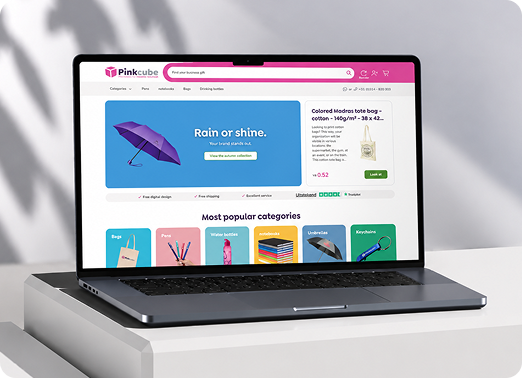
Modern Web App Design & UI Patterns That Scale
Imagine using a telehealth app that you can't tell whether your test results have been reviewed or when you need to reorder. You end up contacting support for answers, adding more work for the team. A better-looking marketing website wouldn't solve this problem. Users need a clear way to check updates, track progress, and know what to do next.
That's what modern web app design is all about. Unlike a marketing website, a web app needs to help people complete tasks, manage information, and return to ongoing work. In this guide, you'll learn how web app design differs from website design, which UI patterns can support your product as it grows, and how to build these experiences in HubSpot.
How Does Modern Web App Design Differ From a Marketing Site?
A marketing site helps a visitor decide. A web app helps a user finish work, again and again. That one change moves every design choice. This table is my framing, not a standard:
|
Marketing site |
Web app |
|
|
Visitor goal |
Decide whether to act |
Finish a task, repeatedly |
|
Success measure |
Conversion |
Task completion and fewer errors |
|
Content |
Pages and stories |
Records, states and permissions |
|
Layout driver |
Message and hierarchy |
Navigation, tables and forms |
|
Consistency |
Brand look |
Patterns learned once and reused |
|
Cost of failure |
A lost lead |
Lost or wrong work |
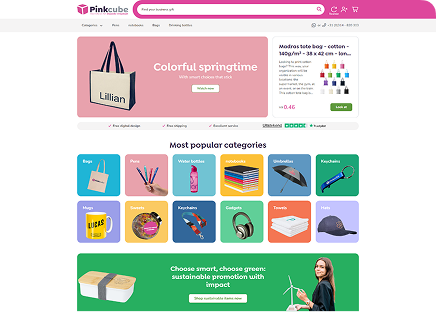
Many roundups of modern UI design show only the left column. Webflow's list of nine examples, for instance, is all marketing sites and agency portfolios. The right column has different rules.
What Makes Modern Web Application Design Scale?
Modern web application design scales when more features, more users and more roles do not turn the product into a maze. Four habits help:
-
Reuse a small set of patterns. Jakob Nielsen's law is blunt about why:
"Users spend most of their time on other sites."
They expect your product to work like the ones they already know. (Source: "Laws of UX")
-
Keep one record behind every view. Two people looking at the same record see the same facts.
-
Design every state, not only the full one. Empty, loading, error and success each need a screen.
-
Build access in from the start. Keyboard use and screen readers affect patterns such as tables, dialogs and messages.
Our UI/UX design team designs these patterns and checks speed and WCAG 2.2 AA accessibility during design.
Which UI Patterns Matter Most in Modern Web App UI Design?
Modern web application ui design gets easier when you think in jobs, not in a fixed list of twelve. Each job has a pattern, and each pattern has a place where it fails:
|
Job |
Pattern |
Avoid it when |
|
Scan and pick one item |
Cards |
Users need to compare many fields |
|
Compare and sort records |
Data table |
A few fields would fit on a card |
|
Find one record in many |
Search and filters |
The list is short enough to read |
|
Move between many areas |
Sidebar navigation |
The app does one thing |
|
Confirm a risky action |
Modal dialog |
The task has many fields or steps |
|
Confirm a quick success |
Toast message |
The user must act on the message |
|
Show that content is loading |
Skeleton screen |
The content appears instantly |
|
Explain an empty area |
Empty state with one next step |
Never skip it |
|
Hide advanced options |
Progressive disclosure |
The details are needed every time |
The "avoid" column is my judgment. The data-size cutoffs in the choosing section are rough guidelines, not research findings. Treat every row as a default to test, not a rule to follow.
Patterns for Dense Data
Data tables suit comparison. For accessibility, W3C says header cells must use th markup and data cells td, and that tables without that structure create barriers. (Source: "Tables Tutorial") Cards suit scanning, not comparing.
Long lists need a loading rule. Baymard's ecommerce testing found that "Load more" buttons with lazy loading beat pagination. It also found that infinite scrolling can harm usability, especially for search results and on mobile. (Source: "Infinite Scrolling, Pagination Or Load More Buttons?")
That is shop data from 2016. A separate lab study of scrolling types found mixed results and no clear winner. So test your own list, and avoid infinite scroll where users must return to a record. To see a filter pattern in action, open the demos in the HubXpert module showcase.
Patterns for Feedback
A toast confirms a quick action without taking focus. WCAG's status messages rule asks that such messages be exposed to assistive technology without receiving focus. (Source: "Understanding SC 4.1.3: Status Messages") My reading: a toast needs a status role, and an error that needs action belongs in the page, not in a toast.
An empty state should say what the area is for and offer one next step. A skeleton screen should match the real layout. Both are my advice.
Patterns for Decisions
A modal dialog suits a short, risky choice, such as deleting a record. The W3C's modal pattern says focus moves into the dialog when it opens, Escape closes it, and focus returns to the element that opened it. (Source: "Dialog (Modal) Pattern") If the task has many fields, give it a page. Progressive disclosure hides advanced options until a user asks, which keeps the first view short.
Patterns for AI Input
Prompt boxes, streaming answers, and controls to stop, retry or edit a response are new. Competitor guides list them, but I found no standard to cite. Treat them as patterns to test with users, not settled rules.
How to Choose the Right UI Design Pattern for Your Web App
Choosing a UI design pattern starts with understanding what your users need to do, how much information they need to work with, and what they expect from your interface. The right pattern should make tasks easier, reduce confusion, and help users move through your app naturally.
Follow these five steps to make the right choice:
01. Identify the Main Task Users Need to Complete
Before choosing a pattern, ask yourself: What does the user want to accomplish on this screen?
Different tasks call for different UI patterns:
-
Browsing content: Use cards or infinite scroll to help users explore items.
-
Comparing information: Use data tables to make differences between records easier to spot.
-
Creating a record: Use progressive disclosure or multi-step forms to break complex processes into manageable steps.
-
Finding specific information: Add a search bar and filters to help users narrow down results.
-
Confirming an action or sharing feedback: Use toast messages or modals when appropriate to communicate status or request a decision.
Start with the user's goal, then choose the pattern that makes completing it as straightforward as possible.
02. Follow Your Users' Existing Mental Models
People bring expectations from the apps and websites they already use. Jakob's Law explains that users generally prefer familiar experiences because they don't have to learn everything from scratch.
For example, people who regularly use tools like Notion, Linear, or Stripe may expect familiar features such as sidebar navigation, command palettes, and structured data tables.
Introducing a completely different interaction can make your app harder to learn. Familiar patterns are usually a good starting point. Consider breaking from convention when user research and testing show that a different approach would work better.
03. Choose a Pattern That Fits Your Data Volume
The amount of information your app needs to display can help you decide which UI pattern to use. A simple list may work well for a small dataset, while hundreds of records often need better search and navigation tools.
Here is a practical starting point:
-
Fewer than 50 items: Cards or simple lists can make content easy to browse.
-
Fewer than 500 items: Searchable lists with filters help users find specific records.
-
More than 500 items: Data tables with sorting and server-side pagination can make large datasets easier to manage.
These numbers are guidelines rather than strict rules. The best choice also depends on how users search, compare, and interact with your data.
04. Test Two Design Options With Real Users
A pattern that looks good in a wireframe may not feel natural when someone actually uses it. Before committing to a design, create two wireframe options and test them with five representative users.
Observe how they interact with each version and look for:
-
Points of hesitation: Where do users pause, get confused, or make mistakes?
-
Ease of use: Which version feels more natural without extra explanation?
-
Task completion: Which pattern helps users finish the task accurately and efficiently?
Testing with five people can reveal common usability problems, although it won't guarantee that you've found every issue. Use the findings to improve the design and test again when needed.
05. Check Accessibility Before Implementation
A UI pattern should work for people using different input methods and assistive technologies. Review accessibility before you move from design to development.
Ask these questions:
-
Can users navigate and operate every interactive element with a keyboard?
-
Are appropriate ARIA roles, names, and states provided for components such as tabs, dialogs, and tables?
-
Can screen readers understand the content, controls, and interaction order?
-
Is keyboard focus visible and managed correctly when dialogs or overlays open and close?
Use the Web Content Accessibility Guidelines (WCAG) as your reference, including WCAG 2.1 where applicable. Accessibility needs to be checked in the implemented interface as well as in the design.
5 Common Mistakes to Avoid When Implementing Web App Design Patterns
Choosing the right pattern is only half the job. How you apply it can also affect how easily users understand and navigate your app. Here are five common mistakes to watch for and how to fix them.
Mistake 1: Mixing Different Patterns to Show the Same Data
Showing the same information in both cards and a data table on one screen can make the interface feel inconsistent. Users may struggle to understand which view they should use or why the information appears in two formats.
How to fix it: Choose a pattern that matches the main task on the screen and use it consistently. If users need multiple views, give them a clear way to switch between them.
Mistake 2: Using Infinite Scroll for Task-Based Pages
Infinite scroll works well when users want to discover content, such as browsing articles or exploring products. However, it can create problems on search results pages and in apps where users need to find, revisit, or manage specific records.
For example, a user looking for a customer record may have to scroll through a long list to find it again.
How to fix it: Use infinite scroll for content discovery. For task-focused pages, consider pagination, search, filters, or a combination of these features so users can find and revisit specific items more easily.
Mistake 3: Putting Complex Workflows Inside Modals
Modals are useful for quick actions, confirmations, and short forms. They become harder to manage when you pack them with many fields, several steps, or complex decisions.
A long workflow inside a small pop-up can hide important information and make it difficult for users to understand what they need to do next.
How to fix it: Keep modals focused on a single task. If a process involves several steps, detailed information, or complex decisions, use a dedicated page or a clearly structured multi-step flow instead.
Mistake 4: Forgetting to Design Empty States
What happens when a new user opens your app and there are no records to display? Without an empty state, the screen may look broken or leave users unsure about what to do next.
Empty states are especially important during onboarding, when users may not have added any data yet.
How to fix it: Design a helpful empty state that explains why the screen has no content and suggests the next action. For example, a project dashboard could display a short message with a button to create the first project.
Mistake 5: Ignoring Focus Management in Modals and Overlays
When a modal opens, keyboard users should be able to interact with its content without getting lost in the page behind it. If focus stays in the background or disappears when the modal closes, navigating the interface becomes confusing.
This can create serious usability problems for people who rely on keyboards or assistive technologies.
How to fix it: Move keyboard focus into the modal when it opens, keep focus within it while it is active, and return focus to the element that opened it when it closes. Also, make sure users can close the modal using an appropriate keyboard interaction, such as Escape when supported by the design.
How Do You Design a Dense Data Dashboard?
Stephen Few defines a dashboard as a display of the most important information for reaching an objective. It sits on one screen so it can be read at a glance. (Source: "What You Need to Know About Designing Information Dashboards")
Five rules follow from that definition, and they are my view:
-
Start with the decision the dashboard supports.
-
Show only the numbers that decision needs.
-
Put the exact records one click away, in a table.
-
Let users filter, and show which filters are on.
-
Show the state of each item, not only its count.
What Does This Look Like in a Real Build?
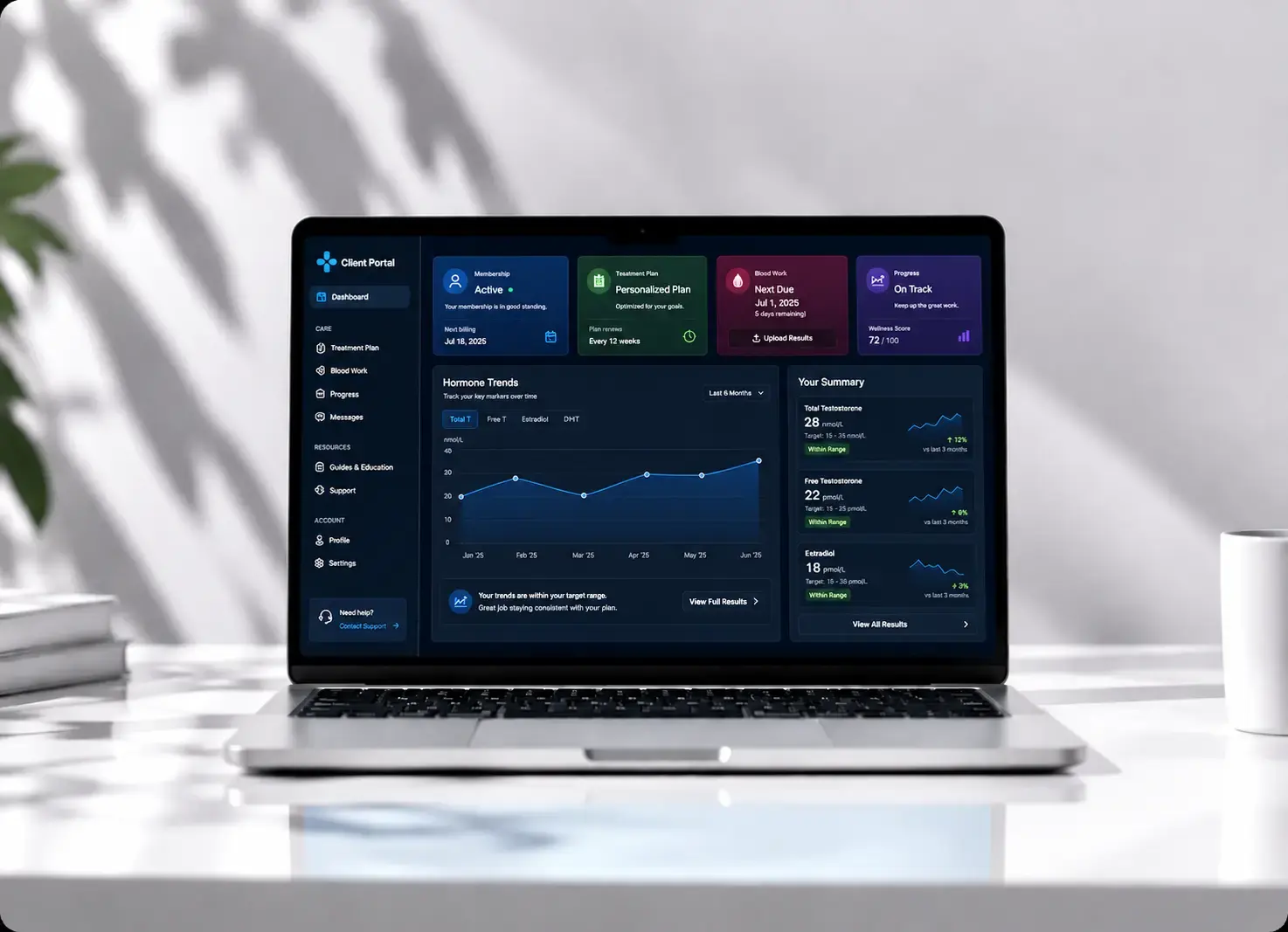
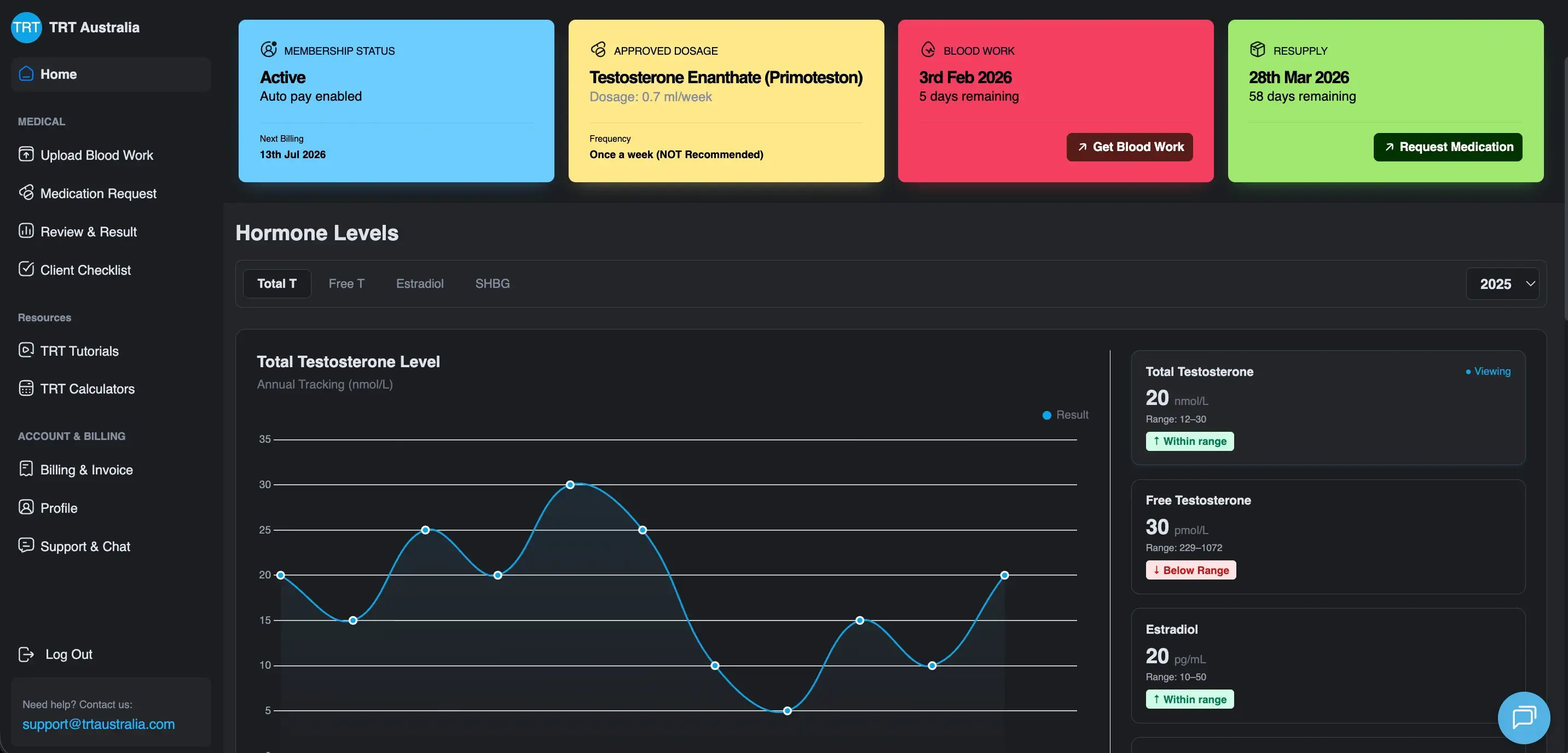
HubXpert built two connected portals on HubSpot for TRT Australia, a telehealth provider. A client portal shows treatment status, test results, medication choices and payment. A staff portal gives doctors and support the operational view behind it. Both read from one record, so a client and the person helping them see the same facts. (Source: "TRT Australia case study")
Three design decisions carry over to any app:
-
The object model and stage logic were designed before anything was configured. The case study says a journey with this many dependencies cannot be built module by module.
-
Automation sorts, routes and sets status. Clinical decisions stay with clinicians, and the system records them.
-
The review view brings current results, past results and history together, so a doctor does not rebuild the picture each time.
The case study lists 8 connected systems, 5 lifecycle modules, 2 portals and an initial build of 15 weeks or more. It reports that clients stopped asking where they stood, but it gives no support-ticket numbers. My reading: these choices keep the portal consistent as it grows, because every new screen reads the same record and the same stage logic. Each added feature extends one model instead of starting a new one.
Which Parts of a Web App Can Be HubSpot Modules?
Not every app-like feature needs a custom app. Calculators, filtered lists, pricing toggles and accordions can be modules that editors manage in HubSpot, so a developer is not needed for every content change.
The line is data. If a feature must read or write records for a signed-in user, it needs a custom build. A portal like TRT Australia's is that kind of work, because it needs sign-in, permissions and a shared record behind every view. Ready-made modules cover the rest.
Our HubSpot module library lists ready-made examples, including a Dynamic Pricing Plan and a Blog Filter Card.
FAQs
What Is the Difference Between a Web App and a Website?
A website mainly shares information and helps visitors decide. A web app lets signed-in users do repeated work with their own data. The line is blurry, and many products mix both.
What Is the Difference Between UI Patterns and a Design System?
A pattern is a reusable solution to a repeated problem, such as how to confirm a delete. A design system is the set of components, styles and rules a team maintains so those patterns look and act the same everywhere.
When Should I Use Cards Instead of a Data Table?
Use cards when users scan and pick one item. Use a table when they compare and sort across fields. If users need both, offer a view switch instead of mixing them on one screen. That is my rule.
How Do I Make Toast Messages Accessible?
Expose the message with a status role so assistive technology can announce it without moving focus. Keep errors that need action out of toasts. That is how WCAG's status messages rule reads.
Can I Build a Web App on HubSpot?
Yes, for apps where HubSpot holds the record. HubXpert's TRT Australia portals run on HubSpot with custom development around it. Simple app-like features can be reusable modules, and signed-in workflows need a custom build.
How Do I Audit the Patterns in an Existing App?
List your main screens, and write each screen's job and its pattern beside it. Look for two patterns doing one job, and for jobs with no pattern, such as an empty area with no next step. Fix clashing patterns first. That is my suggestion.
Should I Copy Patterns From Tools Like Notion or Linear?
Copy the conventions users already know, not the look. A sidebar or a command palette works because people have used it elsewhere, which is Jakob's law at work. Keep your own brand, spacing and wording.
Final Thought
Modern web app design is about making everyday tasks easier as your product grows. Users need clear navigation, useful feedback, and familiar UI patterns that help them manage information without confusion. As your app adds more features and handles more data, these design choices become even more important.
Start by understanding what your users need to accomplish, then choose patterns that support those tasks. Test your design with real users, address accessibility early, and keep improving based on how people use your app.
If you're building a web app with HubSpot, focus on creating an experience that fits your users' workflows and your business needs. The right design foundation can help you build an app that's easier to use today and simpler to scale tomorrow.
Founder & CEO @ Hubxpert. My goal is to make every company using HubSpot succeed in their marketing organisation and automation.
Ratul Rahman
Table of Contents:
Subscribe to our newsletter
Modern Web App Design & UI Patterns That Scale
See how modern web app design differs from a marketing site, covering modern web application design and modern web app UI design for dense data dashboards.
Modern Responsive Web Design Techniques for 2027
Apply modern responsive web design techniques in 2026. Review modern web design best practices and why responsive design still decides your conversions.
Modern Website Design Examples & What Makes Them Work
Browse modern website design examples and modern looking websites, and see exactly what separates a fast, current site from one that already feels dated.
Interactive Web Design Templates & Examples to Study
See interactive web design templates and the best interactive web design inspiration, then compare interactive web page design examples before you build.
Interactive Elements in Web Design & Where to Stop
Add interactive elements in web design that earn their place, covering micro interactions, interactive maps, interactive timelines and knowing when to stop.
3D Web Design Templates & Examples You Can Reuse
Browse 3D web design templates and examples, plus where to find free downloads, and see how 3D web page design lifts a site without slowing the site down.
-
Modern Web App Design & UI Patterns That Scale
hello
UIUX -
Modern Responsive Web Design Techniques for 2027
hello
UIUX -
Modern Website Design Examples & What Makes Them Work
hello
UIUX -
Interactive Web Design Templates & Examples to Study
hello
UIUX -
Interactive Elements in Web Design & Where to Stop
hello
UIUX -
3D Web Design Templates & Examples You Can Reuse
hello
HubSpot


-2.png)


-2.png)


.png)
.webp)
.png)

.png)



-1.webp)
-1.webp)

.webp)
-1-1.webp)


-2.webp)
-1-1.webp)
-2-1.png)
-1-1.webp)
-1-1.webp)
-1-1.png)