



-2.png)
-2.png)

.png)

.webp)
.png)



.png)



-1.webp)
-1.webp)

.webp)
-1-1.webp)

-2.webp)
-1-1.webp)

-2-1.png)
-1-1.webp)
-1-1.webp)
-1-1.png)
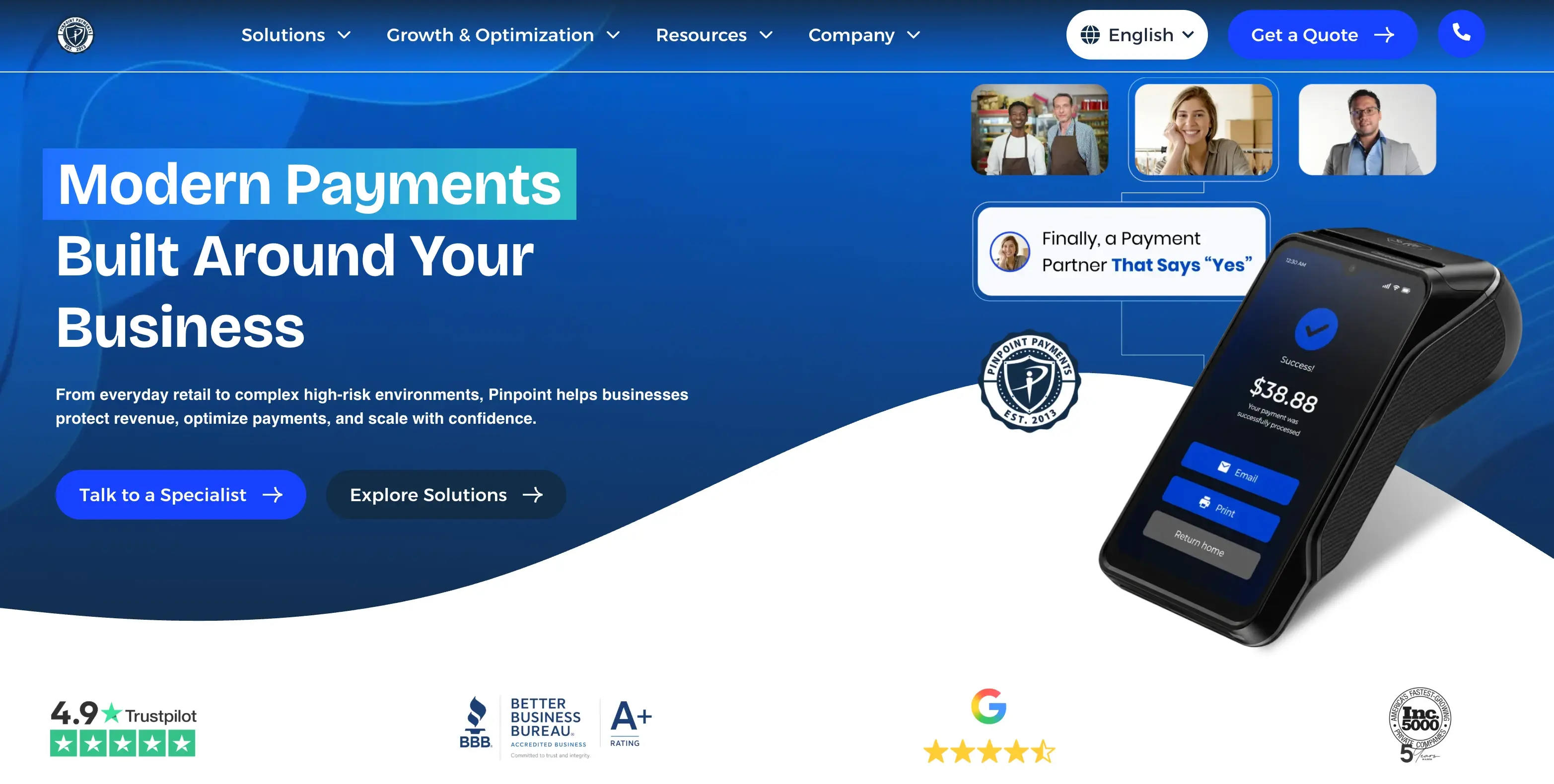






Picture a visitor on a phone, looking for the nearest service center. On the first site, a slow animated map has tiny pins and no list. On the second, a search box, a short list by distance, and a map that moves when she taps a result. Same data, one useful site. This is an illustration, not a client story.
Interactive elements in web design help when they answer a question the visitor already has. They hurt when they slow the page, block keyboard users, or repeat until they are annoyed. Below: micro interactions, maps and timelines, four rules for when to stop, and a HubSpot module plan.
Which Interactive Elements In Web Design Earn Their Place?
The ones that answer a question the visitor already has. A form field that says what went wrong helps. A map that shows the nearest office helps. A hero animation that loops forever does not. Interactivity in web design works like a ladder, and each rung costs more than the last:
-
Feedback: a button that confirms a click, or a field that flags an error.
-
Reveal: an accordion or hover card that shows more detail on request.
-
Tools: a calculator or quiz that returns a result.
-
Explorers: a map or timeline the visitor moves through.
Higher rungs need more code, more testing and more upkeep. That is my read, not a measured result. The next three sections take micro interactions first, then maps and timelines, because those two are the easiest to get wrong.
Types of Interactive Elements
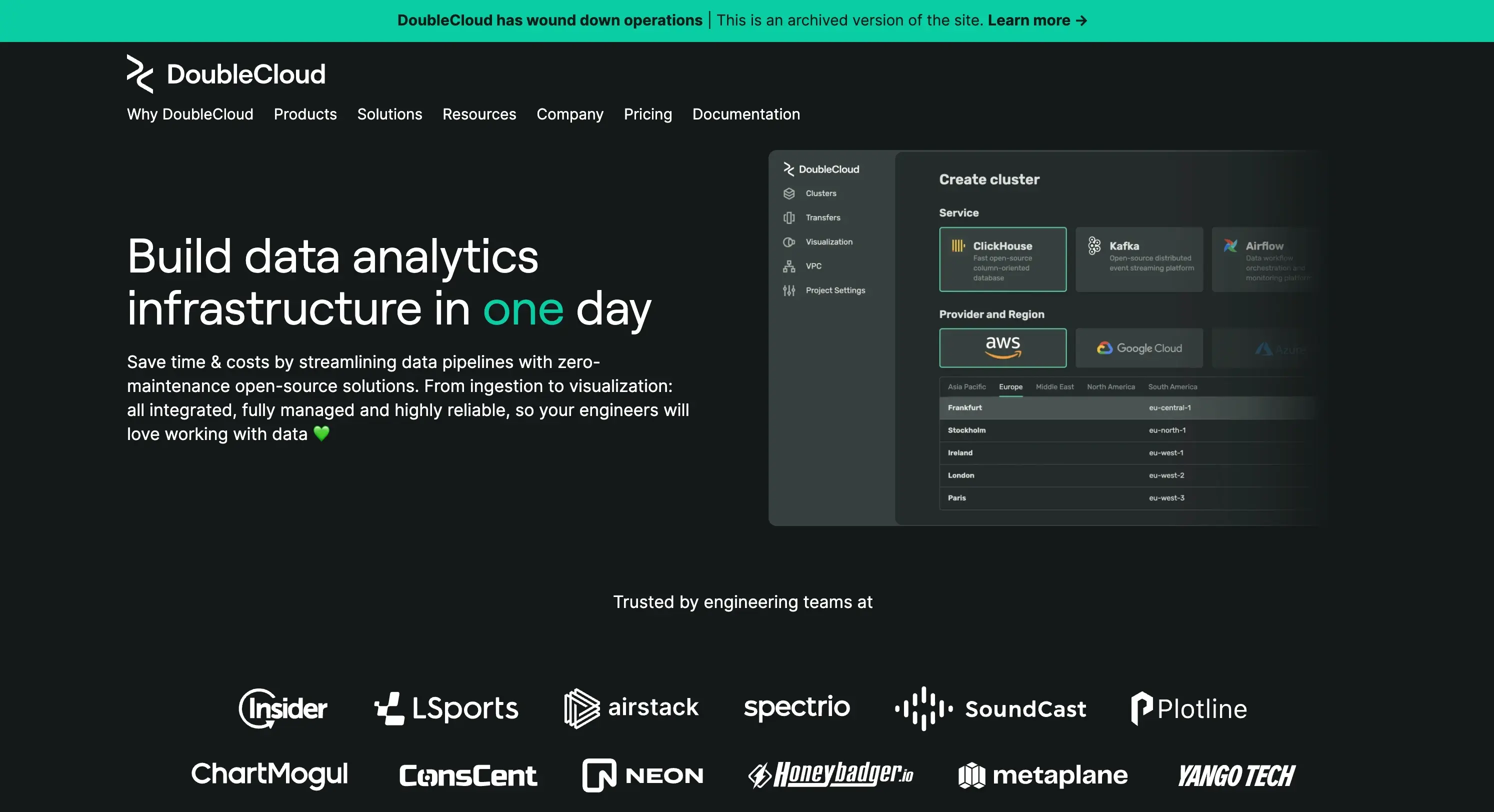
Most interactive elements in web design come down to five types: buttons, links, videos, maps and forms. Momentum, a Michigan web agency, uses the same five in its guide. (Source: "Best Practices for Designing Interactive Elements on Websites") Here is what each one is for, and where each one goes wrong.
Buttons
A button starts an action, such as requesting a quote, adding to cart or downloading a file. Label it with the action, like "Book a Consultation," not "Click Here." Momentum also advises short, specific labels and one button style across the site.
Give each button enough contrast to be seen. WCAG asks for a 3:1 contrast ratio between a control and the colors next to it. (Source: "Understanding SC 1.4.11: Non-text Contrast") The common failure is two competing primary buttons on one screen.
Links
Next is link, which is actually a button that takes a visitor to another page or section, and it should look like one. Momentum suggests underlining, bolding or a distinct color. The same W3C page says a link color with a 3:1 contrast ratio against the surrounding text can satisfy the rule against relying on color alone. Write the anchor text so it says where the link goes. Momentum also warns that five links in a row can look spammy.
Videos

Then comes video that explains what a paragraph cannot, such as a product demo or a customer story. Its cost is weight. The best way to avoid loading a whole video, says web.dev, is a preload value of none plus a poster image as a placeholder. (Source: "Lazy loading video")
Do not start sound on its own. WCAG says audio that plays automatically for more than 3 seconds needs a way to pause or stop it, and the W3C discourages the practice. (Source: "Understanding SC 1.4.2: Audio Control") Momentum adds captions, which help people in sound-sensitive places.
Maps
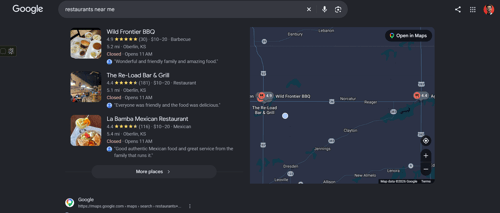
Maps suit store locators and property listings. The map section below covers the list-first rule and pin sizes. Momentum adds that map scripts, especially Google Maps, can be large, so a single office is often better served by a static image and a directions link.
Forms
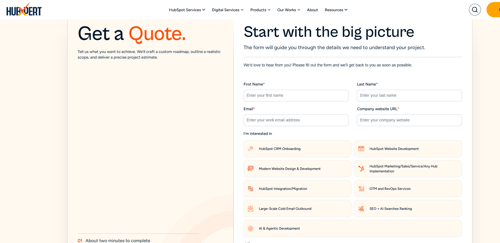
A form turns interest into a lead, so it is where many interactive pages succeed or fail. Label every field. The W3C forms tutorial says placeholder text is not a replacement for labels, because assistive technologies do not treat it as one. (Source: "Form Instructions")
Ask only for what you need. Momentum suggests splitting long forms into steps with a progress indicator, and sending a confirmation message after submission so visitors do not send the form twice.
Which Micro Interactions In Web Design Are Worth Keeping?
Keep the ones that confirm an action. Dan Saffer, who wrote the book on the topic, defines them in one line.
"Microinteractions are the contained product moments that do one small task."
Dan Saffer, designer and author of Microinteractions
He splits each one into four parts: a trigger, rules, feedback, and loops or modes. Rules are invisible, so visitors learn them through feedback. (Source: "Microinteractions: Why details matter") That gives you the test for micro interactions in web design: after the visitor acts, does the page show what happened?
Good examples are small:
-
A button that shows it is working after a click.
-
A form field that flags a problem as the visitor leaves it.
-
A cart or save icon that confirms the item was added.
-
A toggle that shows its new state.
A hero animation that loops with no task behind it is decoration. Saffer also asks designers to think about the tenth visit, not only the first. If an effect would irritate you by then, cut it.
Hover needs care. Extra content that appears on hover or focus must be dismissible, hoverable and persistent. Anything that opens on hover also needs a keyboard route. (Source: "Understanding SC 1.4.13: Content on Hover or Focus")
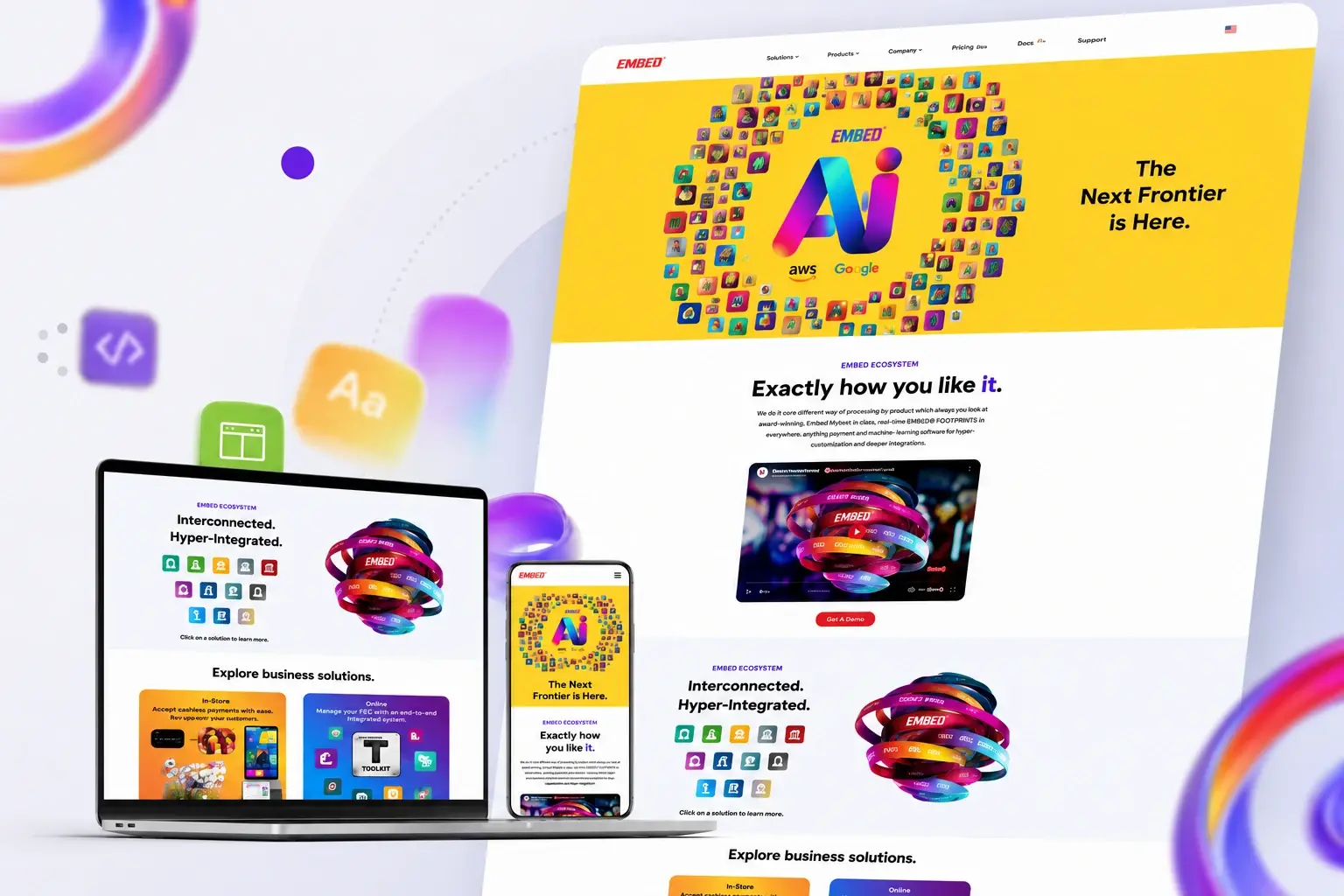
To see small reveal patterns working, open the demos in the HubXpert module showcase, such as the FAQ accordion.
How Does An Interactive Map Make Its Place?
When location decides the choice. Good interactive map web design starts with a plain list of places, and the map comes second. Nielsen Norman Group's research report on store locators covers the choice between an interactive locator and a plain location list. It draws on testing of more than 350 ecommerce sites. (Source: "Store Finders and Locators")
So build the list first. Let visitors search by address or ZIP code, sort results by distance, then draw the same results as pins. That is my suggestion, not the report's.
Skip the map if you have one office or only a few locations. A static map image with a directions link is lighter. I found no research-backed cutoff, so treat five locations as my working number.
Pins are tap targets. WCAG 2.2 sets 24 by 24 CSS pixels as the minimum size for pointer targets, unless spacing makes up for it. (Source: "Understanding SC 2.5.8: Target Size (Minimum)") Keep the list as the keyboard and screen reader route to the same data.
When Does An Interactive Timeline Earn Its Place?
When order and time are the story. Interactive timeline web design suits a company history, a project plan with phases, a product release path, or a step-by-step process. It does not suit a list of facts with no sequence.
Scroll-driven timelines carry a risk. The W3C explains that page elements moving beyond normal scrolling can trigger vestibular disorders. Its criterion 2.3.3 asks that motion triggered by interaction can be disabled. It is Level AAA, so it goes beyond the AA level most teams aim for. (Source: "Understanding SC 2.3.3: Animation from Interactions")
So write the timeline as real text first, and add motion second. Give visitors a way to turn motion off. Our library of reusable HubSpot modules includes a free Timeline Progress Scroll module. Whichever module you pick, test its motion with your system's reduced-motion setting turned on.
Where Should Interactivity In Web Design Stop?
Stop when an element fails any one of four rules:
- Task. Name the one thing a visitor does with it. No task, no element.
- Speed. It must respond fast on a mid-range phone.
- Access. It must work by keyboard, with motion off, and with targets large enough to hit.
- Repeat. Picture the tenth visit. If it would irritate, shorten it or remove it.
Google's measure for the speed rule is Interaction to Next Paint. At least 75% of visits should respond to input in under 200 milliseconds. (Source: "Interaction to Next Paint is officially a Core Web Vital")
A budget helps. I found no research-backed limit on interactive elements per page. My working rule is one main interactive element per page, plus small feedback on buttons and forms. When two elements compete, keep the one closest to your conversion goal.
How Do You Build Interactive Elements On HubSpot?
Build each element as a module, keep its content in fields, and keep its data in HubDB when it has many rows. HubDB is HubSpot's table tool. It supports a location column type that stores longitude and latitude, and you can pull its rows into pages with HubL. (Source: "HubDB") Dynamic pages built from those tables need CMS Hub Professional or Enterprise.
Here is how I would use it. A store map reads its pins from a table with a location column. A timeline reads its entries from rows, one per milestone. Editors then change a row, not the code.
Our library also includes Hovering Info Cards and FAQ Grid Accordion. If your library has no map module, a custom module is the route. For custom elements such as a store map, our UI/UX design team designs the interaction first. It also checks speed and WCAG 2.2 AA accessibility during design.
FAQs
What is the difference between micro interactions and animations?
A micro interaction is tied to one task and gives feedback about it. An animation can be pure decoration. Saffer's test helps: if the motion does not tell the visitor what their action did, it is not doing a micro interaction's job.
How many interactive elements should a page have?
I found no research-backed number. A working rule is one main interactive element, such as a map, calculator or timeline, plus small feedback on buttons and forms. Add a second main element only if it supports a different task.
Do hover effects work on phones?
Phones have no hover, so anything important must work by tap. W3C guidance also says content shown on hover should be reachable by keyboard focus. Treat hover as a bonus layer, never the only route.
What data do I need for an interactive map?
Interactive map web design starts with a list of places, each with an address and a location. HubDB has a location column type that stores longitude and latitude, so a table can feed your pins. Keep the same list on the page as text.
Do I have to meet WCAG 2.3.3 for scroll animations?
It is Level AAA, so it is not part of AA. For interactive timeline web design it is still a sound habit. Let visitors turn off non-essential motion, and respect the system reduced-motion setting.
Can I add interactive elements on HubSpot without a developer?
Yes, if the element is a ready-made module. Editors change its fields in the page editor. Our library lists 21 free modules, including calculators, sliders and a timeline. Custom elements, such as a store map, need developer work.
How do I know an interactive element is working?
Pick the one task it supports, such as a form completion or a click on a location. Compare that task on the same page with and without the element. I have no benchmark to share, so your own numbers matter most.
Do interactive elements raise conversions?
Some agency pages claim they do, with high percentages. I found no independent figure to cite, so I did not use any. Test each element against its own task on your own pages.
Final Thought
Pick one of the interactive elements in web design above and give it one task. Run the four stop rules. Build it as a module with its content in fields, so removing it later is a quick edit, not a rebuild.
Try this today: turn on your system's reduced-motion setting, then use your busiest page with the keyboard only. If you cannot finish the main task, the element has not earned its place. HubXpert designs and builds interactive HubSpot sites with these checks in the process.
As a Hubspot Automation Developer at Hubxpert, I specialize in API integration, seamlessly connecting HubSpot with third-party applications. My role encompasses understanding client needs, crafting custom code solutions, and ensuring the smooth operation of our automation workflows. I actively address any HubSpot integration challenges and stay updated with the platform's latest advancements. My dedication ensures clients harness the full potential of HubSpot.

Tanzinul Kabir
Table of Contents:

Subscribe to our newsletter
Interactive Elements in Web Design & Where to Stop
Add interactive elements in web design that earn their place, covering micro interactions, interactive maps, interactive timelines and knowing when to stop.

3D Web Design Templates & Examples You Can Reuse
Browse 3D web design templates and examples, plus where to find free downloads, and see how 3D web page design lifts a site without slowing the site down.

3D Web Design Tools & Software Compared for 2026
Compare 3D web design tools and web based 3D design software, and see where 3D models and 3D assets for web design fit your existing front-end build pipeline.

HubSpot Onboarding Cost: What the Fee Really Covers
See what HubSpot onboarding cost covers, how onboarding fees get quoted and how to compare implementation quotes line by line before you commit to a partner.

HubSpot Enterprise Onboarding (What Changes by Tier)
See how HubSpot enterprise onboarding differs from Professional and Starter, covering advanced onboarding scope, admin training and what each tier includes.

Best HubSpot CRM Implementation Consulting Agencies for B2B
Compare 6 HubSpot partners for B2B with pros, cons, and pricing. Learn how to judge companies offering HubSpot implementation services and spot red flags.
-
Interactive Elements in Web Design & Where to Stop
hello
-
3D Web Design Templates & Examples You Can Reuse
hello
-
3D Web Design Tools & Software Compared for 2026
hello
-
HubSpot Onboarding Cost: What the Fee Really Covers
hello
-
HubSpot Enterprise Onboarding (What Changes by Tier)
hello
-
Best HubSpot CRM Implementation Consulting Agencies for B2B
hello