


-2.png)
-2.png)

.png)

.webp)
.png)



.png)




-1.webp)
-1.webp)

.webp)
-1-1.webp)

-2.webp)
-1-1.webp)
-2-1.png)
-1-1.webp)
-1-1.webp)
-1-1.png)




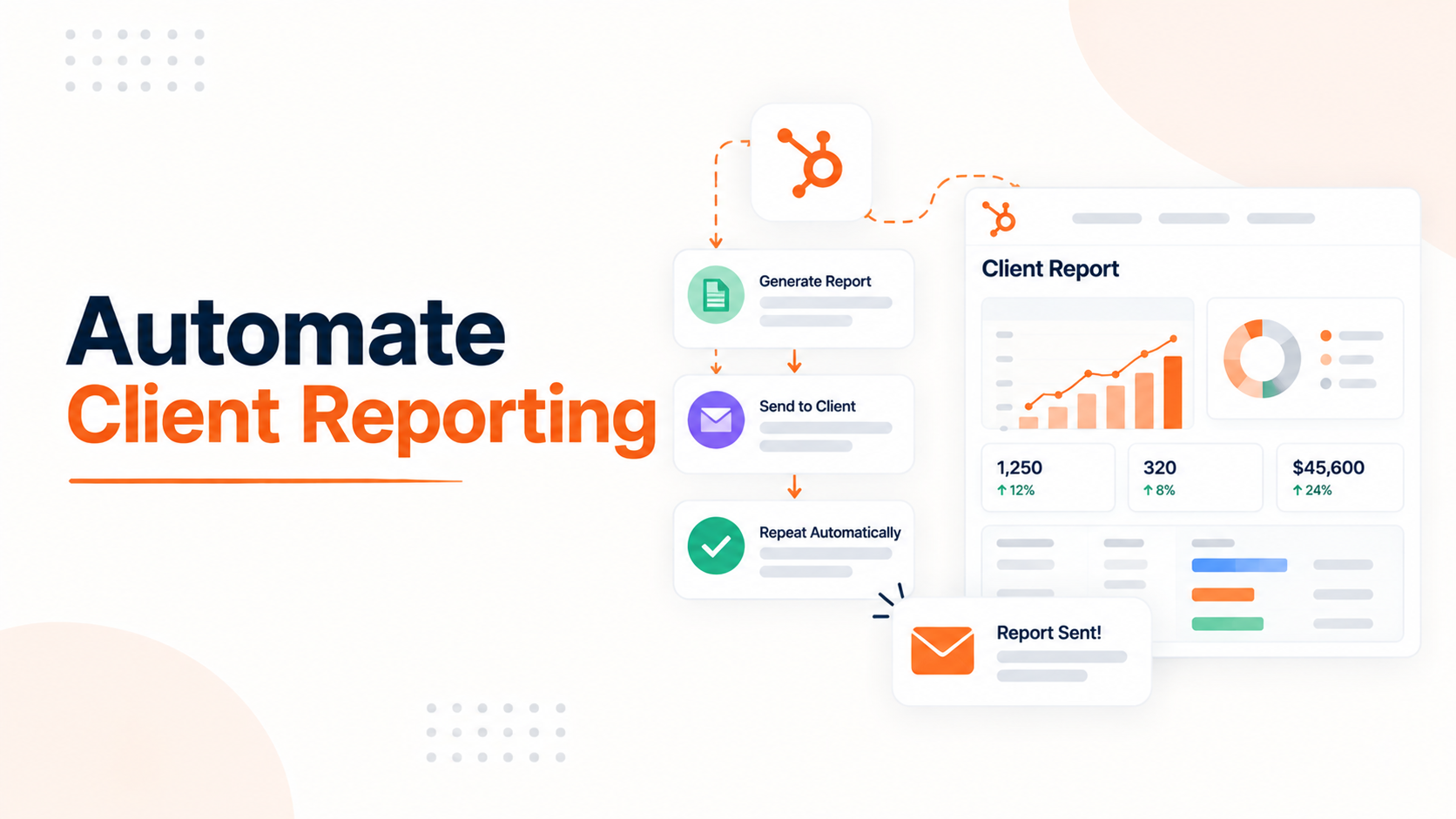
Most agencies think they have automated client reporting once a dashboard exists and someone remembers to export it monthly. That is not automation, it is a slightly faster version of the same manual task.
Real automation means a report reaches the client's inbox on schedule without anyone touching it, and HubSpot's native tools get you there for only part of what agencies actually need to send.
The gap is not obvious until you try to build it. HubSpot treats reports and dashboards as two separate objects with two separate sets of rules for external delivery, and picking the wrong one is why a lot of agencies end up back at manual exports within a few months of thinking they had solved this.
What "Automating" Actually Means for Client Report
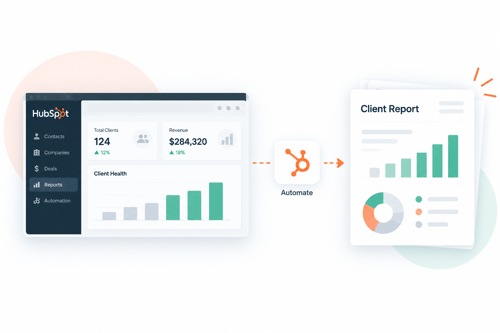
A report only counts as automated if it clears three conditions. It runs on a set schedule without a person re-triggering it. It lands directly in the client's inbox rather than requiring a login. And it keeps doing this indefinitely, not just for the first two or three sends before someone forgets to renew the process. Anything short of that is a manual task with a nicer template sitting on top of it.
This bar matters because HubSpot's two reporting objects, individual reports and full dashboards, clear it very differently once the recipient is outside your own HubSpot account.
Confusing the two is the single most common reason agencies think they have built automated reporting and then discover months later that someone has been manually resending a dashboard the whole time.
The Report-Level Path Versus the Dashboard-Level Path
This is the distinction almost every piece of HubSpot reporting advice skips. Individual reports and full dashboards follow different rules for external, non-HubSpot recipients, and the difference decides whether your automation actually holds up over time.
|
Delivery type |
Recurring to a client? |
Requirement |
|
Individual report |
Yes, through the Other Recipients field |
Client's email domain must be a verified sending domain |
|
Full dashboard |
No, recurring dashboard emails go to HubSpot users only |
One-time dashboard emails can reach clients, but must be manually resent each period |
HubSpot's own documentation on sharing and exporting reports and dashboards states this directly. Recurring dashboard emails are restricted to HubSpot users. Non-recurring dashboard emails can go to non-HubSpot users, but only once per send, and the recipient's domain has to be connected as a verified sending domain either way. Individual reports work differently.
A report's Other Recipients field accepts non-HubSpot users directly, without that same recurring restriction stated anywhere in the documentation.
This is why the right move is building the automation at the report level, not the dashboard level, whenever the recipient is an actual client rather than an internal teammate. It is also why agency requests to send dashboards externally have been sitting in HubSpot's own community ideas forum for years without resolution, with threads on this exact request still active as recently as this year.
If you want a client-facing view that behaves like a dashboard but automates like a report, build several individual reports and send them as one grouped email rather than assembling a dashboard and hoping the sharing rules bend for you.
Building a Report That's Actually Worth Automating
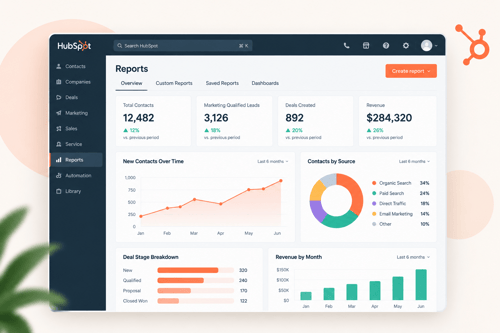
Once the delivery method is settled, the report itself needs to hold up under a monthly cadence without manual cleanup every time it runs. Follow this order:
Step 1:
Pick a single primary data source that matches the question the client actually cares about. Single-object reports query one object only, such as deals or tickets, and update fastest since they pull from live CRM data. The custom report builder joins a primary source with related objects and refreshes on roughly a two-hour cycle instead of instantly.
Step 2:
Understand how HubSpot joins your data before adding more sources. According to HubSpot's documentation on the custom report builder, you can select up to five data sources per report, and the primary source determines what gets included. Choosing Contacts as primary and Deals as secondary shows only deals tied to a contact. Reversing that order shows all deals, including ones with no associated contact. This ordering choice changes what the client sees, so get it right before scheduling anything.
Step 3:
Watch for automatic connective sources. Some object pairs, like contacts and deals, join directly. Others need a bridge. HubSpot's guidance on datasets explains that a report built on deals wanting blog post data will automatically pull in contacts and web activity as connective sources, and those automatic additions still count toward your five-source limit even though you did not select them directly.
Step 4:
Add formula fields for any calculated metric a client expects to see, such as cost per lead or a weighted pipeline figure, instead of exporting the raw numbers to a spreadsheet and doing the math by hand every month.
Step 5:
Confirm the report type actually supports the delivery format you promised. Web analytics reports, custom reports, and reports using a unified data type cannot be sent as a downloadable file attachment, only as a visual embedded in the email. Check this before telling a client to expect a PDF.
Step 6:
Schedule the send at the report level, with the client's email added under Other Recipients and their domain verified for sending.
Skipping step five is the most common failure point I see referenced across setup guides. An agency builds a genuinely useful custom report, tries to schedule it as a file attachment, and only discovers the format restriction mid-setup, after the client has already been told to expect a document.
Where the Data Has to Come From First
HubSpot can only automate reporting on data that already lives inside HubSpot. Deal revenue, email performance, ticket resolution times, and form conversions are native and ready to report on immediately.
Ad spend, keyword rankings, and most channel-specific advertising metrics are not, unless something has already synced them into a HubSpot object first.
This is the step most "automate your client reporting" advice skips over entirely, treating the reporting layer as the whole job when the data layer is usually the part that actually takes time to set up.
If a client report needs to show Google Ads spend or organic ranking movement next to CRM revenue numbers, that connection, whether through a marketplace integration or a Data Hub sync, has to exist before any scheduling decision even matters.
Building the report first and hoping the data shows up later is how projects stall out for weeks.
The Limits Worth Planning Around
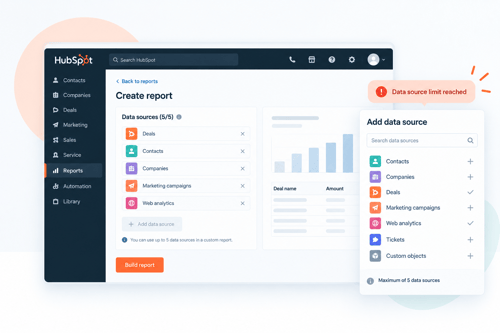
A handful of practical ceilings shape how far this scales once you are running it across a full client book rather than one account. Custom report limits are tied to your subscription tier, and running two Hubs at the same tier, such as Sales Hub Professional alongside Service Hub Professional, does not combine those limits into a larger shared pool. A separate reporting limit increase has to be purchased if your agency needs more room than one tier alone provides.
Attribution-style reporting, the kind that shows a client which channel actually drove a closed deal, sits behind Marketing Hub Enterprise specifically, which matters if proving channel-level value is part of what you promise clients in these reports.
And the five-data-source cap on the custom report builder means a report trying to pull deals, contacts, companies, campaigns, and web activity all at once will hit that ceiling fast, especially once automatic connective sources start filling slots you did not choose yourself.
FAQs
Can HubSpot send automated recurring reports to clients?
Yes, at the individual report level, using the Other Recipients field with a verified sending domain for the client's email address.
Can I schedule a dashboard to email a client every month?
No. Recurring dashboard emails only go to HubSpot users. A dashboard sent to a client can only go out as a one-time email, resent manually each period.
Do clients need a HubSpot login to receive reports?
No, as long as the report is sent through the Other Recipients field with a verified domain, or the dashboard is sent as a one-time, non-recurring email.
How often does a custom report refresh?
Roughly every two hours, since custom reports query joined data across multiple sources rather than pulling live single-object data the way single-object reports do.
How many data sources can one custom report include?
Up to five, and any automatic connective sources HubSpot adds to join unrelated objects count toward that same limit.
Can HubSpot combine ad platform data with CRM data in one automated report?
Only if that ad platform data has already been synced into HubSpot as a native object or property. Native reporting only covers data that already lives inside the account.
Founder & CEO @ Hubxpert. My goal is to make every company using HubSpot succeed in their marketing organisation and automation.

Ratul Rahman
Table of Contents:

Subscribe to our newsletter

Modern Website Design Examples & What Makes Them Work
Browse modern website design examples and modern looking websites, and see exactly what separates a fast, current site from one that already feels dated.

Interactive Web Design Templates & Examples to Study
See interactive web design templates and the best interactive web design inspiration, then compare interactive web page design examples before you build.

Interactive Elements in Web Design & Where to Stop
Add interactive elements in web design that earn their place, covering micro interactions, interactive maps, interactive timelines and knowing when to stop.

3D Web Design Templates & Examples You Can Reuse
Browse 3D web design templates and examples, plus where to find free downloads, and see how 3D web page design lifts a site without slowing the site down.

3D Web Design Tools & Software Compared for 2026
Compare 3D web design tools and web based 3D design software, and see where 3D models and 3D assets for web design fit your existing front-end build pipeline.

HubSpot Onboarding Cost: What the Fee Really Covers
See what HubSpot onboarding cost covers, how onboarding fees get quoted and how to compare implementation quotes line by line before you commit to a partner.
-
Modern Website Design Examples & What Makes Them Work
hello
-
Interactive Web Design Templates & Examples to Study
hello
-
Interactive Elements in Web Design & Where to Stop
hello
-
3D Web Design Templates & Examples You Can Reuse
hello
-
3D Web Design Tools & Software Compared for 2026
hello
-
HubSpot Onboarding Cost: What the Fee Really Covers
hello