



-2.png)

-2.png)

.png)

.webp)

.png)




.png)






-1.webp)
-1.webp)

.webp)
-1-1.webp)


-2.webp)
-1-1.webp)

-2-1.png)

-1-1.webp)
-1-1.webp)
-1-1.png)







Migrating support tickets to HubSpot Service Hub is not just about moving records from one system to another. The goal is to keep the ticket history, relationships, and support context intact so the team can continue working without losing visibility. HubSpot treats tickets as CRM records that can be created, updated, retrieved, and associated with contacts and companies through its ticket endpoints. (Source: CRM API | Tickets)
This guide covers what to migrate, how to prepare, how to map fields, how to preserve associations, and how to test the result before go-live. It also helps you understand how HubSpot’s Help Desk relates to tickets in the product. The core process works whether you are moving from Zendesk, Freshdesk, Kustomer, Freshservice, or another external system, and the platform notes further down cover what changes for each one. If you are instead moving tickets from one HubSpot portal to another, or importing at scale through the API, those scenarios are covered separately later in this guide.
What to Migrate into Service Hub
Start by defining the exact support data you want to bring over. In most migrations, that includes tickets, ticket properties, internal notes, customer replies, conversation history, attachments, and the contact and company records tied to each ticket. If a field helps the team route, solve, or report on the ticket, it belongs on the migration list.
The key is to move more than the headline fields. A support ticket is only useful when the team can still see who raised it, what happened, who handled it, and how it was resolved. If that context is missing, the record may exist in HubSpot, but it will not be very useful.
A good migration scope usually includes:
- Ticket subject.
- Ticket description.
- Status.
- Priority.
- Owner.
- Created date.
- Closed date.
- Internal notes.
- Customer replies.
- Attachments.
- Contact associations.
- Company associations.
- Custom support fields.
Prepare Before You Import

Before you move anything, review the source support system and confirm what can actually be exported. Some systems make it easy to export ticket records but harder to preserve history, attachments, or relationship data. (Source: Manage tickets in help desk - HubSpot Knowledge Base)
At this stage, decide three things:
- Which tickets are in scope.
- Which historical details must be preserved.
- Which records can be simplified or left out.
This is also the right time to prepare HubSpot itself. Create the properties you will need, set up the ticket pipeline, and make sure your team has agreed on status names, ownership rules, and the way tickets should be organized once they arrive.
If you skip this step, the import may still work, but the data will not be easy to use after the move. A clean plan here saves a lot of cleanup later. For source-system review and scope planning, see Pre-Migration CRM Audit.
Migrating From a Specific Support Platform
Zendesk to HubSpot Service Hub
Zendesk tickets export cleanly through its API or a CSV ticket export, and most teams keep the original Zendesk ticket ID as a custom property in HubSpot so agents can trace a record back to its source. Zendesk custom fields and tags do not map one to one with HubSpot properties, so build the field map before you export rather than after, and decide early which Zendesk tags become HubSpot properties and which get dropped. Zendesk stores satisfaction ratings and macros separately from the ticket record itself, and those need their own export and mapping plan if the team wants to keep that history.
Freshdesk to HubSpot Service Hub
Freshdesk tickets migrate through its API or a data export. The main thing to check before you start is how Freshdesk handles ticket threading, since a single Freshdesk ticket can hold a full email thread that needs to land as ordered notes in HubSpot instead of one flattened block of text. Freshdesk contact and company records usually match cleanly to HubSpot contacts and companies by email and domain, which makes the association step earlier in this guide more straightforward than it is for some other platforms.
Kustomer to HubSpot Service Hub
Kustomer conversations are built around a timeline model rather than a single ticket record, so migrating from Kustomer usually means deciding how to convert that timeline into discrete HubSpot tickets before the import starts. This decision affects reporting later, since one Kustomer conversation that spans several topics may need to become more than one HubSpot ticket to stay useful for the support team.
Freshservice to HubSpot Service Hub
Freshservice is built for IT service management, so its tickets often carry asset and configuration item links that have no direct HubSpot equivalent. Decide before migration whether that asset context gets flattened into a ticket note or left out, since HubSpot’s ticket object has no native asset or configuration item field.
Map Fields Carefully
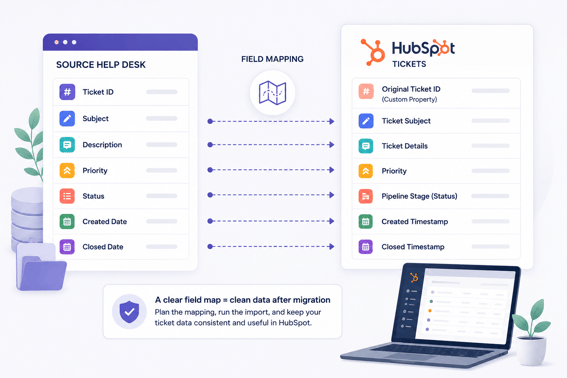
Field mapping is where most migrations succeed or fail. Every source field should have a clear destination in HubSpot, and that mapping should be agreed on before the first import starts.
A few common examples:
- Source ticket ID to original ticket ID custom property.
- Subject to ticket subject.
- Description to ticket details.
- Priority to priority field.
- Status to pipeline stage.
- Created date to created timestamp.
- Closed date to closed timestamp.
HubSpot’s ticket object supports properties and associations, so you can structure ticket data in a way that still makes sense after migration. That is why the field map should not be treated as a rough guide. It should be a working document that tells you exactly how each record will land. (Source: CRM API | Tickets)
If you have custom fields in the source system, map only the ones that matter. It is better to import fewer fields cleanly than to import every field badly. For the broader mapping approach, see CRM Data Mapping.
Preserve Relationships
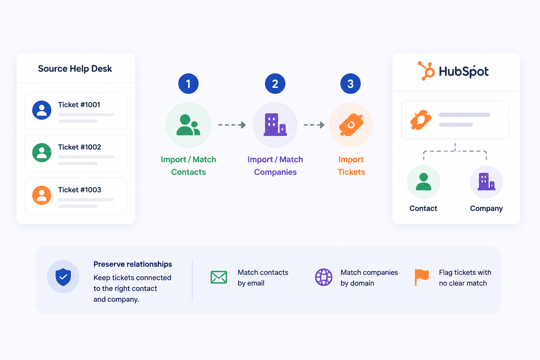
Tickets are much more valuable when they stay connected to the right contact and company. HubSpot supports associations on ticket records, so those links should be part of the migration plan from the start.
The safest sequence is usually:
- Import or match contacts first.
- Import or match companies second.
- Import tickets last.
- Attach each ticket to the correct records using a stable identifier.
Email is often the simplest contact match field. Company domain is often the simplest company match field. If your source data does not match cleanly, define a fallback rule before you import.
For tickets that involve multiple people, decide who should be treated as the primary contact. For tickets with no clear match, flag them instead of forcing a bad association. A wrong association is often worse than no association at all. If you want to preserve data relationships cleanly, review Preserve CRM Data Integrity During a HubSpot Migration.
Handle History & Attachments
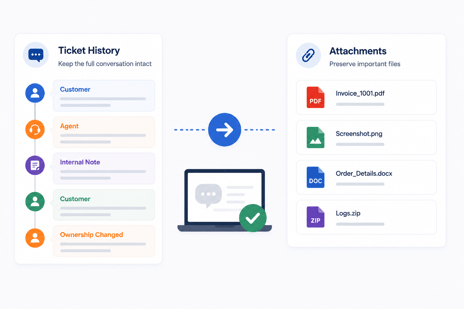
Conversation history is what gives a support ticket its meaning. A record with only a subject and a status may be enough for reporting, but it is not enough for support work.
Keep the thread readable by preserving:
- Message order.
- Internal notes.
- Customer replies.
- Timestamps.
- Ticket ownership changes if they matter to the case history.
Attachments need the same care. Check file size, file type, and naming before migration. If full attachment import is not practical for every record, use a clear fallback method so the team still knows where the supporting files live.
The goal here is simple. After migration, an agent should still be able to understand the case without going back to the old system.
Rebuild Pipelines & Workflows
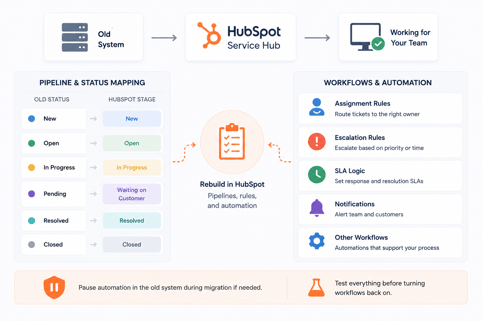
Once the data model is ready, recreate the support process inside HubSpot. That means rebuilding the pipeline, mapping old statuses to new stages, and setting up any workflow logic that support teams depend on.
Keep this part practical:
- Match old statuses to HubSpot stages.
- Recreate assignment rules.
- Recreate escalation rules.
- Rebuild SLA-related logic.
- Review notifications tied to ticket movement.
If you have automation running in the old system, pause it during the migration window if needed. Then test the rules in a controlled way before turning them back on.
The goal is not to copy the old system line for line. The goal is to make the new system work properly for the team.
Migrating Tickets at Scale Through the API
A CSV import works fine for most single-batch ticket migrations. The API is the better route when ticket volume is high, when the source data needs custom transformation before it lands in HubSpot, or when the migration needs to run in stages instead of one large cutover. HubSpot’s ticket endpoints support creating, updating, and associating tickets directly, so a migration script can create the ticket, attach it to the right contact and company, and add historical notes in a single pass instead of a separate cleanup step afterward.
Rate limits apply per HubSpot account tier, so a large migration needs to batch requests and handle retries rather than sending every record at once. Test the script against a small batch in a sandbox or test portal before pointing it at production data, the same rule that applies to every other migration path in this guide.
Test Before Go-live
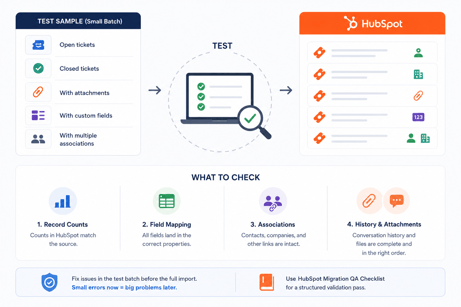
A test run is not optional. Use a small sample set that includes open tickets, closed tickets, tickets with attachments, tickets with custom fields, and tickets with multiple associations.
During testing, check four things:
- Record counts match.
- Field mapping works.
- Associations are intact.
- History and attachments still make sense.
HubSpot’s ticket APIs let you work with properties and associations directly, which is useful when you want to validate or troubleshoot records during the migration process. That makes testing easier, but it also makes it more important to confirm the data before you move the full set. (Source: A Developer's Guide to HubSpot CRM Objects: Ticket Object)
If something looks off in the test batch, fix it before the main import. A small error caught early is cheap. The same error after go-live is not.
For a structured validation pass, use HubSpot Migration QA Checklist.
Cut Over With Care
Do not switch systems in the middle of active support work without a freeze window. Announce the cutover date, stop changes in the source system at the right time, and run a final delta migration to catch anything created after the test run.
After the move, monitor the first 24 to 72 hours closely. Look for missing tickets, broken ownership, incorrect statuses, duplicate records, and workflow issues. This is the period when most hidden migration problems show up.
A smooth cutover is usually the result of good preparation, not luck.
Common Issues & Fixes
The most common problems in a ticket migration are predictable.
Missing associations usually mean the import order was wrong or the matching key was weak. Duplicate tickets usually mean the original ticket ID was not tracked properly. Missing attachments usually come from file handling issues that were not tested early enough. Incorrect timestamps usually come from timezone formatting problems. Broken workflows usually mean a property was missing or mapped incorrectly.
None of these issues are unusual. They are just easier to avoid when the migration plan is clear.
Migrating Tickets Between Two HubSpot Portals
A portal-to-portal migration comes up after a company merger, a rebrand, a change of HubSpot partner, or a move from a sandbox portal to production. It works differently from migrating in from an outside system, since both sides are already HubSpot. There is no dedicated portal-to-portal migration tool built into HubSpot, so this is usually done through the CRM API, a third-party HubSpot migration app, or a CSV export and reimport for smaller ticket volumes.
Custom properties, pipelines, and associations need to exist in the destination portal in the same shape as the source portal before you import, since HubSpot will not create a missing property or pipeline stage for you mid-import, it will simply fail or drop the value. Ticket IDs reset in the new portal regardless of method, so if the team needs to trace a ticket back to its original portal, store the old ticket ID in a custom property the same way you would for a migration from an outside system.
FAQ
Can I migrate customer support tickets to HubSpot Service Hub?
Yes. HubSpot’s ticket object is designed to manage support requests, and tickets can be created and associated with related records through the CRM API.
Can I preserve ticket history and attachments?
Yes, but the exact result depends on how your source data exports and how the import process is designed.
How do I keep ticket associations with contacts and companies?
Import or match those records first, then connect the tickets to them using stable identifiers and HubSpot associations. (Source: CRM API | Associations)
Can I keep original ticket IDs?
Yes. Store the source ticket ID in a custom property so the record stays traceable after import.
How do I map old ticket statuses to HubSpot?
Create a status mapping table before migration and make sure each old status has one clear destination in the new pipeline.
How do I avoid duplicates during migration?
Use unique identifiers, check for existing records before import, and validate a sample set before moving the full batch.
How do I test the migration before go-live?
Run a small staged import, compare counts, review sample records, and confirm that associations, history, and attachments look right. For a broader post-migration check, use HubSpot Migration QA Checklist.
Can I migrate tickets from Zendesk to HubSpot Service Hub?
Yes. Zendesk tickets export through its API or a CSV export. The main extra step is mapping Zendesk’s custom fields and tags to HubSpot properties before you import, since they do not match automatically.
Can I migrate from Kustomer to HubSpot?
Yes, though Kustomer’s timeline-based conversations usually need to be split into discrete tickets before the import, since Kustomer does not structure data around single ticket records the way HubSpot and most other help desks do.
Can I move tickets between two HubSpot portals?
Yes. There is no dedicated portal-to-portal migration tool, so this is done through the API, a third-party migration app, or a CSV export and reimport, and the destination portal needs matching properties and pipelines set up before you start.
Should I use the API or a CSV import to migrate tickets?
CSV works for most single-batch migrations. The API is the better choice for high ticket volumes, custom data transformations, or a staged migration instead of one cutover.
Conclusion
A good support migration keeps the full case context intact. If you preserve the fields, relationships, history, and workflow logic, HubSpot Service Hub can become a reliable new home for your support data instead of just another system filled with disconnected records.
The safest approach is simple. Prepare first, map carefully, test early, and cut over with control. (Source: Manage tickets in help desk - HubSpot Knowledge Base)
Founder & CEO @ Hubxpert. My goal is to make every company using HubSpot succeed in their marketing organisation and automation.

Ratul Rahman
Table of Contents:

Subscribe to our newsletter

Can You White Label HubSpot and What Are the Limits?
Can you white label HubSpot? Yes, with limits. See what the best HubSpot white label setup looks like and where a white-label ecommerce CMS build fits in.

White-Label HubSpot Implementation for Partner Agencies
Offer white-label HubSpot implementation under your own brand, covering white-label HubSpot automation, website builds and ongoing SEO content delivery.

How to Choose a White Label Company Without Getting Burned
What is a white label company, and how do you pick one? Compare white label companies in the USA and the contract terms that protect your own clients best.

White Label Solution Explained for Agencies & Startups
Understand what a white label solution is and how white label business opportunities work, plus where to find the best white label options for a small agency.

What Is White Label Marketing & Where It Fits
What is white label marketing, and what does white label mean in business? We cover the definition, the common software uses and several plain examples.

What Is a White Label Service & How the Model Works
What is a white label service, and where does it apply? We explain white labeling services, the meaning behind them and when the model fits your business.
-
Can You White Label HubSpot and What Are the Limits?
hello
-
White-Label HubSpot Implementation for Partner Agencies
hello
-
How to Choose a White Label Company Without Getting Burned
hello
-
White Label Solution Explained for Agencies & Startups
hello
-
What Is White Label Marketing & Where It Fits
hello
-
What Is a White Label Service & How the Model Works
hello