




-2.png)

-2.png)

.png)

.webp)

.png)







.png)





-1.webp)
-1.webp)

.webp)
-1-1.webp)


-2.webp)
-1-1.webp)

-2-1.png)

-1-1.webp)
-1-1.webp)
-1-1.png)







Moving data into HubSpot is relatively straightforward. The harder part is making sure every contact, company, deal, ticket, and custom field ends up in the right place and continues working as expected after the migration.
Without a proper mapping strategy, it's easy to bring over thousands of records only to discover broken reports, missing associations, inconsistent property values, and workflows that no longer function correctly. This is where HubSpot data mapping becomes essential.
Before you migrate a single record, you need a blueprint for how your CRM data will be structured inside HubSpot. And that process starts long before the import button is clicked.
What Is HubSpot Data Mapping?
During a HubSpot migration, data mapping is the process of defining where every field, object, and relationship from your existing CRM will live inside HubSpot.
Think of it as a translation layer between two systems.
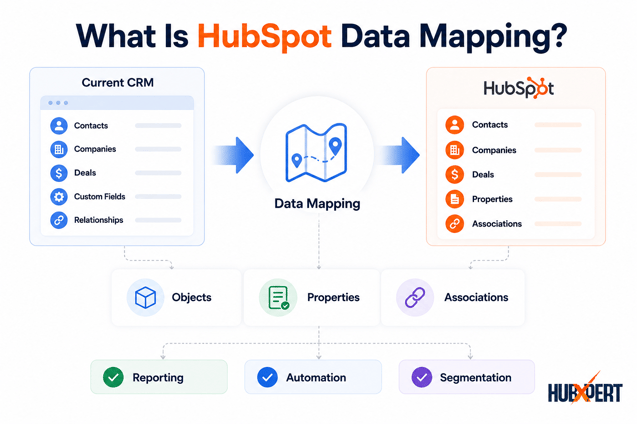
For example, a Salesforce field called Annual Revenue may map directly to HubSpot's Annual Revenue property. A custom field such as Customer Tier may require creating a new custom property in HubSpot before the data can be imported correctly.
In most CRM migrations, data mapping happens across three areas:
-
Objects such as Contacts, Companies, Deals, Tickets, and Custom Objects
-
Properties such as First Name, Industry, Annual Revenue, Lead Source, and custom fields
-
Associations such as Contact-to-Company, Company-to-Deal, and Deal-to-Ticket relationships
A successful migration is not measured by how much data is imported. It is measured by whether that data continues to support reporting, automation, segmentation, ownership, and business processes after the migration is complete.
This is why data mapping is usually completed before any records are imported into HubSpot.
HubSpot Field Mapping vs Property Mapping
The terms field mapping and property mapping are often used interchangeably during CRM migrations, but there is a small distinction worth understanding.
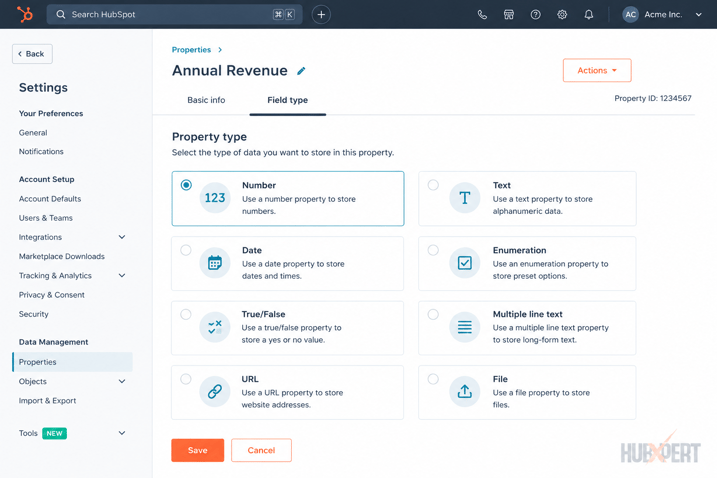
In most CRMs, data is stored inside fields. In HubSpot, data is stored inside properties. During a migration, the goal is to map source CRM fields to the appropriate HubSpot properties.
For example:
|
Source CRM Field |
HubSpot Property |
|
First Name |
firstname |
|
Company Name |
name |
|
Lead Source |
Lead Source |
|
Annual Revenue |
Annual Revenue |
|
Customer Tier |
Custom Property |
This process is known as HubSpot field mapping because you're mapping fields from one system to another. At the same time, it's also called property mapping because you're deciding which HubSpot properties should store that data.
The more important consideration is not the terminology. It's ensuring the destination property is configured correctly.
Before mapping a field, verify:
-
Property type (Text, Number, Date, Dropdown, Checkbox)
-
Internal property name
-
Allowed values for dropdown fields
-
Reporting requirements
-
Workflow dependencies
-
Integration dependencies
A field can only be migrated successfully if the target HubSpot property can store the data in the correct format. This becomes especially important when migrating custom fields, lifecycle stages, lead statuses, revenue values, and other operational data.
HubSpot Objects You Should Map Before Migration
Before mapping individual fields, you need to identify which HubSpot objects will store your data. Most migrations involve more than just contacts. Sales activities, company information, support records, and custom business data often live across multiple objects that need to be mapped correctly.
Contact Object Mapping
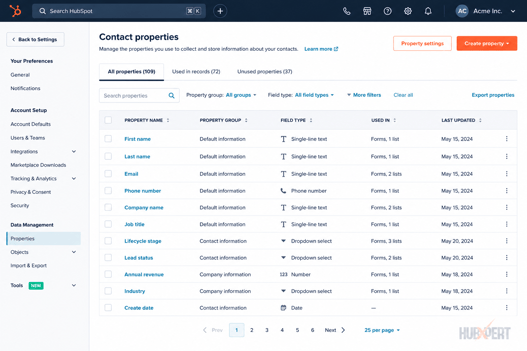
The Contact object stores information about individual people in your CRM.
Common contact fields include:
|
Source CRM Field |
HubSpot Property |
|
First Name |
First Name |
|
Last Name |
Last Name |
|
|
|
|
Phone Number |
Phone Number |
|
Job Title |
Job Title |
|
Lead Source |
Lead Source |
When migrating contacts, pay special attention to unique identifiers such as email addresses. HubSpot uses email as the primary identifier for contact records, making it critical for duplicate prevention and record updates.
Company Object Mapping
The Company object stores information about businesses associated with your contacts and deals.
Common company mappings include:
|
Source CRM Field |
HubSpot Property |
|
Company Name |
Company Name |
|
Website |
Company Domain Name |
|
Industry |
Industry |
|
Employee Count |
Number of Employees |
|
Annual Revenue |
Annual Revenue |
|
Country |
Country/Region |
One of the most common migration mistakes is importing company data without properly associating contacts. Always verify Contact-to-Company relationships before importing.
Deal Object Mapping
The Deal object tracks sales opportunities and revenue-related activities.
Typical deal mappings include:
|
Source CRM Field |
HubSpot Property |
|
Opportunity Name |
Deal Name |
|
Deal Value |
Amount |
|
Close Date |
Close Date |
|
Deal Stage |
Deal Stage |
|
Deal Owner |
Deal Owner |
|
Pipeline |
Pipeline |
Deal stage mapping requires additional planning because source CRM stages rarely match HubSpot stages exactly. We'll cover the lifecycle stage and pipeline mapping later in this guide.
Ticket Object Mapping
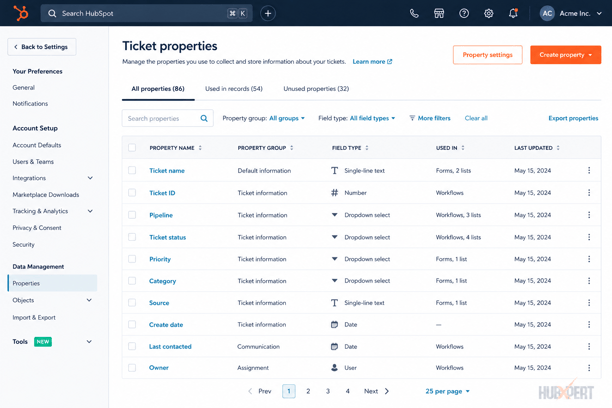
If customer service or support data is being migrated, you'll also need to map Ticket records.
Common ticket mappings include:
|
Source CRM Field |
HubSpot Property |
|
Ticket Subject |
Ticket Name |
|
Status |
Ticket Status |
|
Priority |
Priority |
|
Owner |
Ticket Owner |
|
Resolution Date |
Closed Date |
Ticket migrations are often overlooked during CRM projects but can be critical for maintaining historical support visibility.
Custom Object Mapping
Many businesses store operational data that doesn't fit neatly into Contacts, Companies, Deals, or Tickets.
Examples include:
-
Subscriptions
-
Memberships
-
Properties
-
Assets
-
Products
-
Projects
-
Contracts
These datasets often require HubSpot Custom Objects.
Before migrating custom object data, define:
-
Object name
-
Property structure
-
Relationships with existing HubSpot objects
-
Reporting requirements
-
Automation requirements
Custom object planning is usually one of the most technical parts of a HubSpot migration because incorrect architecture can impact reporting and scalability long after the migration is complete.
Mapping Lifecycle Stages, Lead Statuses & Pipeline Stages
One of the most important parts of HubSpot data mapping is handling lifecycle stages, lead statuses, and pipeline stages correctly. These fields drive reporting, automation, lead management, and sales processes, so incorrect mapping can create problems long after the migration is complete.
Although these values may appear similar, they serve different purposes inside HubSpot.
Lifecycle Stages
Lifecycle Stage represents where a contact sits within the overall customer journey.
Common HubSpot lifecycle stages include:
|
HubSpot Lifecycle Stage |
|
Subscriber |
|
Lead |
|
Marketing Qualified Lead (MQL) |
|
Sales Qualified Lead (SQL) |
|
Opportunity |
|
Customer |
|
Evangelist |
|
Other |
When migrating from another CRM, avoid mapping statuses directly without understanding the underlying business process.
For example:
|
Source CRM Value |
HubSpot Lifecycle Stage |
|
New Lead |
Lead |
|
Marketing Qualified |
MQL |
|
Sales Accepted |
SQL |
|
Opportunity Created |
Opportunity |
|
Active Customer |
Customer |
The goal is to map business progression, not simply match labels.
Lead Status Mapping
Lead Status tracks the current sales engagement state of a contact.
Common HubSpot lead statuses include:
|
HubSpot Lead Status |
|
New |
|
Open |
|
In Progress |
|
Open Deal |
|
Unqualified |
|
Attempted to Contact |
|
Connected |
|
Bad Timing |
Many CRMs use custom sales statuses that require transformation during migration.
Example:
|
Source CRM Status |
HubSpot Lead Status |
|
Contacted |
Connected |
|
Working |
In Progress |
|
No Response |
Attempted to Contact |
|
Disqualified |
Unqualified |
This mapping becomes particularly important when workflows and sales reports depend on Lead Status values.
Pipeline Stage Mapping
Pipeline stages define how opportunities move through the sales process.
Unlike lifecycle stages, pipeline stages are unique to each business and often require custom configuration before migration.
Example:
|
Salesforce Stage |
HubSpot Deal Stage |
|
Prospecting |
Qualification |
|
Discovery |
Discovery |
|
Proposal Sent |
Presentation Scheduled |
|
Negotiation |
Decision Maker Bought-In |
|
Closed Won |
Closed Won |
|
Closed Lost |
Closed Lost |
Before importing deals, verify:
-
Pipeline names
-
Stage names
-
Stage order
-
Stage probabilities
-
Automation dependencies
-
Reporting requirements
A direct one-to-one stage match is rarely possible. Most successful migrations involve consolidating, renaming, or restructuring stages to align with the new HubSpot sales process.
CRM Field Mapping by Source Platform
While the data mapping principles remain the same, the actual field mapping process varies depending on the CRM you're migrating from. Different platforms use different object structures, naming conventions, and field types, which means direct one-to-one mapping is not always possible.
Below are examples of how common CRM fields are typically mapped into HubSpot.
Salesforce → HubSpot
Salesforce and HubSpot share many similar objects, making field mapping relatively straightforward.
|
Salesforce Field |
Object |
HubSpot Property |
Property Type |
|
First Name |
Lead/Contact |
First Name |
Single-line Text |
|
Last Name |
Lead/Contact |
Last Name |
Single-line Text |
|
|
Lead/Contact |
|
Single-line Text |
|
Company |
Lead |
Company Name |
Single-line Text |
|
Lead Source |
Lead |
Lead Source |
Dropdown |
|
Annual Revenue |
Account |
Annual Revenue |
Number |
|
Opportunity Amount |
Opportunity |
Amount |
Currency |
|
Opportunity Stage |
Opportunity |
Deal Stage |
Dropdown |
One area that typically requires additional planning is Lead-to-Contact conversion history, as Salesforce and HubSpot handle lead management differently.
Zoho CRM → HubSpot
Zoho often contains a mix of standard and heavily customized fields, making field auditing important before migration.
|
Zoho CRM Field |
Object |
HubSpot Property |
Property Type |
|
First Name |
Leads |
First Name |
Single-line Text |
|
Last Name |
Leads |
Last Name |
Single-line Text |
|
|
Leads |
|
Single-line Text |
|
Lead Status |
Leads |
Lead Status |
Dropdown |
|
Industry |
Accounts |
Industry |
Dropdown |
|
Annual Revenue |
Accounts |
Annual Revenue |
Number |
|
Closing Date |
Deals |
Close Date |
Date Picker |
For Zoho migrations, custom picklist values often require transformation before importing into HubSpot.
Close CRM → HubSpot
Close CRM is commonly used by outbound sales teams and startups, making activity history and ownership mapping particularly important.
|
Close CRM Field |
Object |
HubSpot Property |
Property Type |
|
Contact Name |
Contact |
First Name / Last Name |
Text |
|
Email Address |
Contact |
|
Text |
|
Lead Status |
Lead |
Lead Status |
Dropdown |
|
Lead Owner |
Lead |
Contact Owner |
HubSpot User |
|
Opportunity Value |
Opportunity |
Amount |
Currency |
|
Opportunity Status |
Opportunity |
Deal Stage |
Dropdown |
Many Close CRM migrations also involve rebuilding pipeline structures to align with HubSpot's deal pipeline framework.
Zendesk Sell → HubSpot
Zendesk Sell users often migrate sales, contact, and company data while preserving pipeline visibility.
|
Zendesk Sell Field |
Object |
HubSpot Property |
Property Type |
|
Contact Name |
Contact |
First Name / Last Name |
Text |
|
|
Contact |
|
Text |
|
Organization |
Company |
Company Name |
Text |
|
Deal Value |
Deal |
Amount |
Currency |
|
Deal Stage |
Deal |
Deal Stage |
Dropdown |
|
Owner |
Contact/Deal |
HubSpot Owner |
User |
Before migration, verify ownership mappings to ensure records are assigned to the correct HubSpot users.
Microsoft Dynamics 365 → HubSpot
Dynamics environments are often highly customized, making field inventory and property planning critical before migration.
|
Dynamics 365 Field |
Object |
HubSpot Property |
Property Type |
|
First Name |
Contact |
First Name |
Text |
|
Last Name |
Contact |
Last Name |
Text |
|
Email Address |
Contact |
|
Text |
|
Account Name |
Account |
Company Name |
Text |
|
Revenue |
Account |
Annual Revenue |
Number |
|
Opportunity Value |
Opportunity |
Amount |
Currency |
|
Opportunity Status |
Opportunity |
Deal Stage |
Dropdown |
For Dynamics migrations, it's common to encounter custom entities that may require HubSpot Custom Objects rather than standard properties.
The HubSpot Data Mapping Process (Step-by-Step)
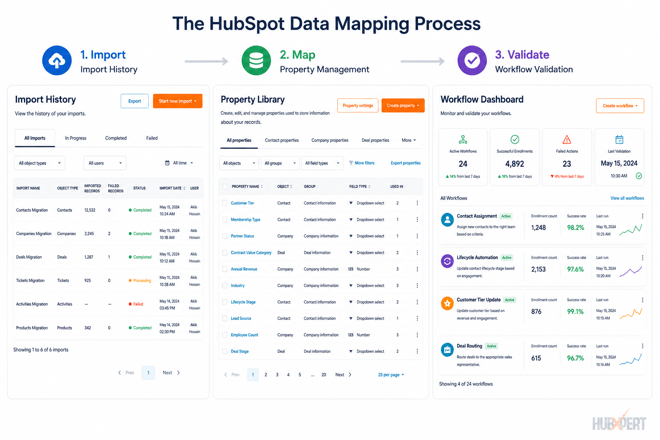
A successful HubSpot migration starts long before data is imported. The goal of data mapping is not simply to move records from one system to another. It's to ensure the data remains usable for reporting, automation, segmentation, and day-to-day operations after migration.
Here's the process we typically follow during HubSpot migration projects.
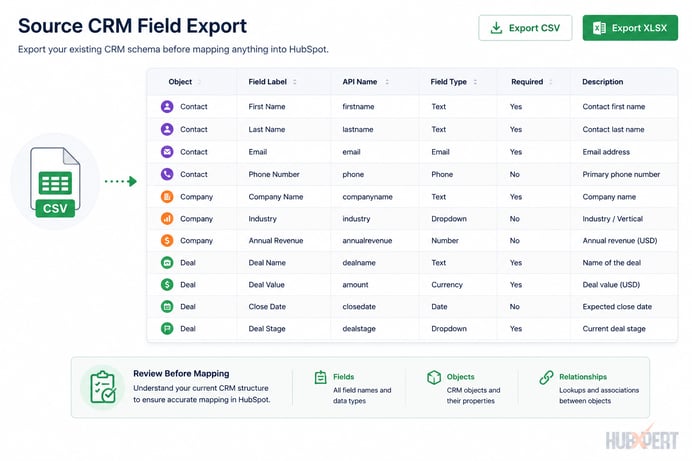
Step 1: Audit Your Source CRM Structure
Start by documenting every object, field, pipeline, and relationship that currently exists in your CRM.
This includes:
-
Contacts
-
Companies / Accounts
-
Deals / Opportunities
-
Tickets / Cases
-
Custom Objects
-
Custom Fields
-
Pipelines
-
Ownership Rules
At this stage, avoid making migration decisions. Focus on inventorying what exists today.
A CRM that has been used for several years often contains duplicate fields, outdated properties, and abandoned processes that should be identified before mapping begins.
Step 2: Categorize Standard & Custom Fields
Next, separate fields into categories.
|
Category |
Description |
|
Standard Fields |
Native CRM fields with direct HubSpot equivalents |
|
Custom Fields |
Business-specific fields that may require custom properties |
|
Calculated Fields |
Formula-based fields that may need recreation |
|
System Fields |
Internal platform fields that typically shouldn't be migrated |
|
Deprecated Fields |
Old or unused fields that can be retired |
This exercise helps reduce unnecessary complexity and prevents migrating data that no longer serves a business purpose.
Step 3: Identify Fields That Should Not Be Migrated
One of the biggest mistakes during CRM migrations is assuming every field should move to HubSpot.
In reality, many fields can be archived or removed.
Examples include:
-
Duplicate fields
-
Legacy workflow fields
-
Obsolete reporting fields
-
Temporary campaign properties
-
Inactive pipeline fields
-
Historical system-generated fields
The goal is to improve data quality, not recreate years of technical debt.
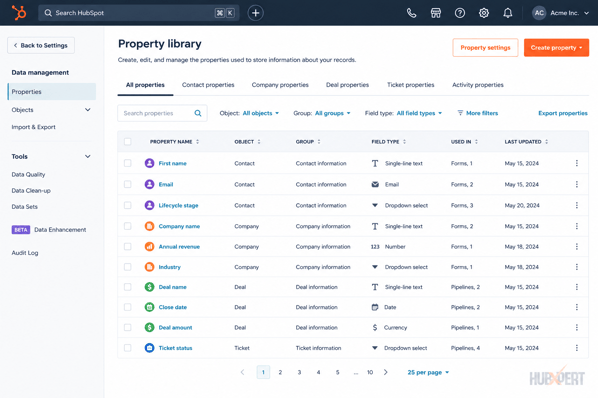
Step 4: Match Existing HubSpot Properties
Before creating custom properties, review HubSpot's default property library.
Many businesses create unnecessary custom properties for data that HubSpot already supports.
Examples include:
|
Existing CRM Field |
HubSpot Standard Property |
|
Industry |
Industry |
|
Job Title |
Job Title |
|
Annual Revenue |
Annual Revenue |
|
Website |
Company Domain Name |
|
Lead Source |
Lead Source |
Using standard properties whenever possible improves reporting, integrations, and future maintainability.
Step 5: Create Missing Properties
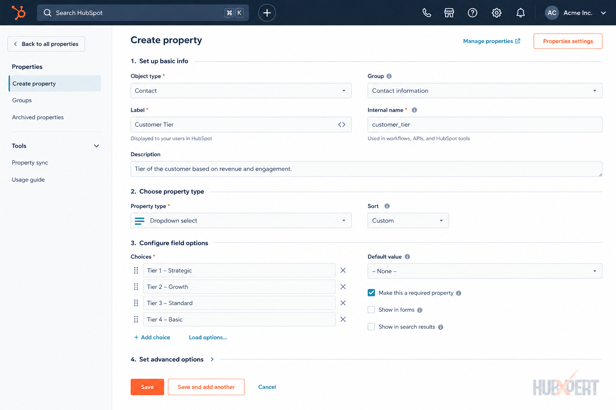
If a field has no HubSpot equivalent, create a custom property.
Examples:
|
Source CRM Field |
HubSpot Action |
|
Customer Tier |
Create Custom Property |
|
Contract Value Category |
Create Custom Property |
|
Membership Type |
Create Custom Property |
|
Partner Status |
Create Custom Property |
Before creating a property, define:
-
Object type
-
Property type
-
Allowed values
-
Naming convention
-
Reporting requirements
Poor property architecture often becomes a long-term governance problem after migration.
Step 6: Validate Data Types
Every mapped field should use the correct property type.
Examples include:
|
Data Type |
HubSpot Property Type |
|
Email Address |
Single-line Text |
|
Revenue |
Number |
|
Close Date |
Date Picker |
|
Lead Source |
Dropdown Select |
|
Active Customer |
Single Checkbox |
Incorrect property types can cause import errors, broken workflows, and inaccurate reporting.
For example, importing revenue into a text field may prevent calculations and dashboard reporting later.
Step 7: Map Associations Between Objects
A CRM is more than individual records. Relationships between records are equally important.
Common associations include:
-
Contact ↔ Company
-
Company ↔ Deal
-
Contact ↔ Deal
-
Contact ↔ Ticket
-
Company ↔ Ticket
-
Custom Object ↔ Contact
Many migrations successfully import data but fail to preserve relationships between records, making reporting and automation significantly less useful.
Always validate association logic before importing large datasets.
Step 8: Validate the Mapping Before Import
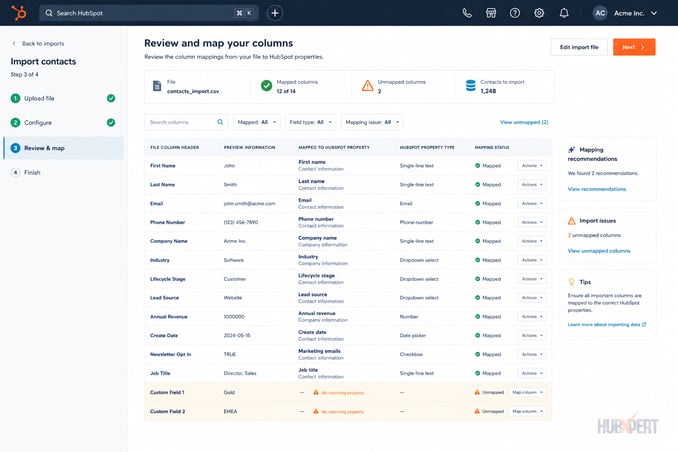
Before migrating thousands of records, perform a sample import.
A small validation batch allows you to verify:
-
Property mapping
-
Object associations
-
Ownership assignments
-
Lifecycle stages
-
Deal stages
-
Reporting accuracy
-
Workflow enrollment logic
Fixing issues during testing is significantly easier than correcting thousands of records after a production migration.
A well-executed mapping exercise should make the final import feel predictable. By the time data enters HubSpot, every field, object, and relationship should already have a defined destination.
Example HubSpot Data Mapping Matrix
A data mapping matrix is one of the most useful documents during a HubSpot migration. It serves as the blueprint for how data will move from the source CRM into HubSpot and helps align stakeholders before any records are imported.
At a minimum, a mapping matrix should capture:
-
Source object
-
Source field
-
HubSpot object
-
HubSpot property
-
Property type
-
Mapping action
-
Notes or transformation requirements
Here's a simplified example:
|
Source Object |
Source Field |
HubSpot Object |
HubSpot Property |
Action |
|
Lead |
First Name |
Contact |
First Name |
Direct Mapping |
|
Lead |
Last Name |
Contact |
Last Name |
Direct Mapping |
|
Lead |
|
Contact |
|
Direct Mapping |
|
Lead |
Lead Source |
Contact |
Lead Source |
Value Transformation |
|
Account |
Company Name |
Company |
Company Name |
Direct Mapping |
|
Account |
Industry |
Company |
Industry |
Dropdown Mapping |
|
Opportunity |
Deal Value |
Deal |
Amount |
Direct Mapping |
|
Opportunity |
Opportunity Stage |
Deal |
Deal Stage |
Stage Mapping |
|
Opportunity |
Close Date |
Deal |
Close Date |
Direct Mapping |
|
Custom Object |
Membership Type |
Contact |
Membership Type |
Custom Property |
Not every field will be mapped directly.
For example, a source CRM may contain lead statuses such as:
|
Source Value |
HubSpot Value |
|
Working |
In Progress |
|
Contacted |
Connected |
|
Disqualified |
Unqualified |
|
Proposal Sent |
Open Deal |
This type of transformation should be documented inside the mapping matrix before migration begins.
Recommended Mapping Matrix Columns
For larger migration projects, we recommend expanding the mapping document to include:
|
Column |
Purpose |
|
Source Object |
Original CRM object |
|
Source Field |
Original field name |
|
HubSpot Object |
Destination object |
|
HubSpot Property |
Destination property |
|
Property Type |
Text, Number, Date, Dropdown, etc. |
|
Required |
Yes/No |
|
Transformation Rule |
Mapping logic if values change |
|
Validation Status |
Tested / Pending |
|
Notes |
Additional migration requirements |
The more detailed the mapping matrix becomes, the easier it is to validate imports, troubleshoot issues, and maintain data consistency after migration.
Common HubSpot Field Mapping Mistakes
Even with a well-planned migration, field mapping mistakes can create reporting issues, broken automations, and data quality problems that are difficult to fix later. Most of these issues are avoidable when identified during the planning stage.
Creating Too Many Custom Properties
One of the most common mistakes is creating custom properties for fields that already exist in HubSpot.
For example:
|
Custom Property Created |
Existing HubSpot Property |
|
Company Industry |
Industry |
|
Revenue Range |
Annual Revenue |
|
Job Position |
Job Title |
Using HubSpot's standard properties whenever possible improves reporting, integrations, and long-term maintainability.
Mapping Incorrect Data Types
A field may appear to import successfully but still cause issues if the property type is incorrect.
Examples include:
|
Source Data |
Incorrect Property Type |
|
Close Date |
Single-line Text |
|
Revenue |
Multi-line Text |
|
Customer Since |
Dropdown |
|
Active Customer |
Number |
Always validate property types before migration. Incorrect data types can impact workflows, filters, calculations, and reports.
Ignoring Dropdown Value Mapping
Dropdown fields require more than field-level mapping. The values themselves must also be mapped correctly.
Example:
|
Source CRM |
HubSpot |
|
Working |
In Progress |
|
Contacted |
Connected |
|
Closed |
Customer |
If value mapping is skipped, imports may fail or create inconsistent data across records.
Forgetting Record Ownership
Many migrations focus on data fields while overlooking ownership assignments.
Examples include:
-
Contact Owner
-
Company Owner
-
Deal Owner
-
Ticket Owner
Without owner mapping, records may be assigned incorrectly or become unassigned altogether, creating confusion for sales and service teams.
Breaking Object Associations
Importing contacts, companies, and deals separately does not automatically preserve their relationships.
For example:
-
Contacts linked to Companies
-
Companies linked to Deals
-
Contacts linked to Deals
-
Tickets linked to Contacts
A migration may appear successful, but missing associations can significantly reduce reporting accuracy and workflow functionality.
Migrating Historical CRM Clutter
Not all data deserves a place in HubSpot.
Examples of data that often should not be migrated include:
-
Obsolete custom fields
-
Inactive pipeline stages
-
Legacy campaign properties
-
Duplicate records
-
Test records
-
Retired business processes
A migration is often the best opportunity to simplify CRM architecture and improve data quality. If duplicate records are part of that cleanup, our HubSpot contact deduplication guide covers how to find and merge them before they reach HubSpot.
Skipping Migration Testing
Many businesses perform a full migration without first validating a small sample dataset.
A test import helps identify:
-
Mapping errors
-
Association issues
-
Property type conflicts
-
Ownership problems
-
Workflow dependencies
Fixing 100 records is significantly easier than fixing 100,000 records after a production migration.
HubSpot CRM Data Migration Best Practices
A successful HubSpot migration is not determined by how quickly data is imported. It's determined by how well that data supports reporting, automation, segmentation, and day-to-day operations after the migration is complete.
The following best practices help reduce risk and improve long-term CRM usability.
1. Build the Mapping Document Before Migrating Data
Many migration issues occur because teams start importing records before completing the mapping exercise.
Before migrating a single record, document:
-
Source objects
-
Source fields
-
HubSpot properties
-
Property types
-
Transformation rules
-
Associations
A well-defined mapping document becomes the single source of truth throughout the migration project.
2. Clean Data Before Migration
Migrating poor-quality data into HubSpot simply transfers existing problems into a new system.
Before migration:
-
Remove duplicate records
-
Archive obsolete fields
-
Standardize naming conventions
-
Review dropdown values
-
Validate email addresses
-
Remove test records
Clean data improves reporting accuracy and user adoption from day one.
3. Migrate Objects in the Correct Order
The migration sequence matters because many HubSpot objects depend on associations.
A common migration order is:
-
Companies
-
Contacts
-
Deals
-
Tickets
-
Custom Objects
-
Activities and Notes
This approach helps maintain record relationships throughout the migration process.
4. Validate Property Types Before Import
Property type mismatches are one of the most common causes of migration errors.
Before importing data, verify:
-
Text fields
-
Date fields
-
Number fields
-
Dropdown properties
-
Checkboxes
-
User properties
Making these corrections before migration is significantly easier than fixing thousands of records afterward.
5. Test With a Small Sample First
Never start with a full production migration.
Instead, import a small sample dataset and validate:
-
Property mapping
-
Lifecycle stages
-
Deal stages
-
Ownership assignments
-
Associations
-
Reports
-
Workflows
Testing helps identify issues before they impact the entire CRM.
6. Validate Associations After Migration
A successful import does not guarantee that relationships between records were preserved.
After migration, verify:
-
Contacts are associated with Companies
-
Deals are associated with Contacts and Companies
-
Tickets are linked correctly
-
Custom Objects maintain relationships
Association validation is often overlooked but has a major impact on reporting and automation.
7. Audit Reports & Workflows
Many businesses assume reports and workflows will continue functioning after migration.
In reality, property names, values, and structures often change.
After migration, review:
-
Dashboards
-
Custom reports
-
Workflow enrollment criteria
-
Lead routing rules
-
Lifecycle stage automation
-
Revenue reporting
This ensures operational processes continue working as expected.
8. Establish Property Governance
A migration is the ideal time to define how future properties will be created and managed.
Without governance, HubSpot portals often become cluttered with duplicate properties, inconsistent naming conventions, and unused fields.
Define:
-
Property naming standards
-
Ownership responsibilities
-
Field creation approval process
-
Documentation requirements
Strong governance helps maintain CRM health long after the migration is complete.
HubSpot Data Mapping Checklist
Before starting your HubSpot migration, use this checklist to verify that your data mapping strategy is complete and ready for implementation.
CRM Audit
-
Inventory all CRM objects
-
Export field schema from the source CRM
-
Identify standard and custom fields
-
Review active pipelines and stages
-
Document record ownership structure
-
Identify integrations that depend on existing fields
Data Cleanup
-
Remove duplicate records
-
Archive unused fields
-
Standardize dropdown values
-
Validate email addresses
-
Remove test records
-
Review historical data requirements
Property Mapping
-
Map standard CRM fields to HubSpot properties
-
Identify fields that require custom properties
-
Validate property types
-
Document field transformation rules
-
Verify required fields
-
Review reporting dependencies
Object Mapping
-
Map Contacts
-
Map Companies
-
Map Deals
-
Map Tickets
-
Map Custom Objects (if applicable)
-
Document object relationships
Association Planning
-
Contact ↔ Company associations verified
-
Company ↔ Deal associations verified
-
Contact ↔ Deal associations verified
-
Ticket associations verified
-
Custom Object associations verified
-
Association labels reviewed (if applicable)
Lifecycle & Pipeline Validation
-
Lifecycle stages mapped
-
Lead statuses mapped
-
Deal stages mapped
-
Pipeline structure reviewed
-
Stage probabilities configured
-
Automation dependencies documented
Pre-Migration Testing
-
Create migration test file
-
Import sample records
-
Validate property mapping
-
Validate ownership assignment
-
Validate associations
-
Review imported data accuracy
Post-Migration Validation
-
Verify record counts
-
Review dashboards and reports
-
Test workflows
-
Validate lifecycle stage automation
-
Confirm integrations are functioning
-
Review user permissions and ownership
If every item above is completed before the migration begins, the actual import process becomes significantly more predictable and easier to validate.
How HubXpert Handles HubSpot Data Mapping Projects
Data mapping is one of our first exercises we perform before any HubSpot migration project. The objective is not simply to move data into HubSpot, but to ensure the new CRM structure supports reporting, automation, sales processes, and future scalability.
Our migration process typically includes:
-
CRM architecture audit
-
Source object and field inventory
-
Property and object mapping matrix creation
-
Lifecycle stage and pipeline mapping
-
Custom property planning
-
Association mapping validation
-
Test migration and QA review
-
Production migration and post-migration validation
This approach helps identify potential issues before records are imported, reducing the risk of broken workflows, inaccurate reports, duplicate records, and data quality problems after go-live.
Wrapping Up
A HubSpot migration is ultimately a data architecture project. While importing records is relatively straightforward, ensuring fields, objects, associations, and business processes are mapped correctly requires careful planning.
Most migration issues trace back to decisions made during data mapping, not the import itself. By investing time in property planning, association mapping, lifecycle stage alignment, and validation, businesses can avoid reporting issues, broken automations, and long-term CRM maintenance challenges.
If you're planning a HubSpot migration, start with the mapping strategy first. Everything else becomes significantly easier once the foundation is in place.
FAQs
Does HubSpot have a native data mapping tool?
HubSpot provides field mapping capabilities during imports, allowing users to match source fields to HubSpot properties. However, for larger CRM migrations involving multiple objects, custom properties, associations, and data transformations, most businesses create a dedicated mapping matrix before importing data.
How do I map historical activity data into HubSpot?
Historical activities such as notes, emails, calls, tasks, and meetings can be migrated into HubSpot, but the approach depends on the source CRM and migration method. Before migrating activity data, define which records are required for reporting, sales visibility, and compliance purposes to avoid importing unnecessary historical clutter.
Can I fix mapping mistakes after migration is complete?
Yes, but the effort required depends on the type of mistake. Property mapping errors can often be corrected through data updates or re-imports, while association issues, workflow dependencies, and reporting structures may require more extensive remediation. This is why migration testing is critical before a full production import.
How long does the data mapping phase take?
The timeline depends on the complexity of the CRM environment. Smaller migrations with mostly standard fields may take a few days, while migrations involving multiple objects, custom properties, custom objects, and complex business processes can require several weeks of mapping and validation.
Should historical closed deals be migrated into HubSpot?
In most cases, yes. Historical deal data helps maintain revenue reporting, customer history, forecasting analysis, and lifecycle visibility. The decision often depends on data quality and reporting requirements.
What happens if my source CRM contains fields that don't exist in HubSpot?
If a suitable HubSpot property does not exist, you can create a custom property or, in some cases, a custom object. During the mapping phase, it's important to determine whether the field still serves a business purpose before creating new CRM architecture.
Founder & CEO @ Hubxpert. My goal is to make every company using HubSpot succeed in their marketing organisation and automation.

Ratul Rahman
Table of Contents:

Subscribe to our newsletter

What Is White Label Marketing & Where It Fits
What is white label marketing, and what does white label mean in business? We cover the definition, the common software uses and several plain examples.
What Is a White Label Service & How the Model Works
What is a white label service, and where does it apply? We explain white labeling services, the meaning behind them and when the model fits your business.

White-Label Staff for HubSpot Agencies Explained
Hire white-label staff for HubSpot agencies without adding headcount. Compare fractional HubSpot experts and see how to price the markup you add on top.

HubSpot Agency Partner Program Reseller White Label Routes
See how the HubSpot agency partner program, reseller and white label routes differ, then set up a white-labeled partner portal that clients actually use.

Do You Need a Healthcare-Specific CRM, or HubSpot?
Some practices outgrow HubSpot. Most don't. Here is the real threshold test, and where a healthcare-specific CRM actually wins.

Referral Tracking Software or Your CRM? A Healthcare Guide
HubSpot has no native referral object. Here is how referral tracking actually gets built inside a CRM, and when you need dedicated software instead.
-
What Is White Label Marketing & Where It Fits
hello
-
What Is a White Label Service & How the Model Works
hello
-
White-Label Staff for HubSpot Agencies Explained
hello
-
HubSpot Agency Partner Program Reseller White Label Routes
hello
-
Do You Need a Healthcare-Specific CRM, or HubSpot?
hello
-
Referral Tracking Software or Your CRM? A Healthcare Guide
hello