




-2.png)

-2.png)

.png)

.webp)

.png)






.png)





-1.webp)
-1.webp)


.webp)
-1-1.webp)


-2.webp)
-1-1.webp)

-2-1.png)
-1-1.webp)
-1-1.webp)
-1-1.png)







Email remains one of the highest-performing marketing channels, generating an average return of $36 for every $1 spent (Source: Litmus Email Marketing ROI Report)
Because of this, migrating to HubSpot involves much more than importing contacts. Marketing teams must also preserve email templates, contact lists, subscription preferences, segmentation logic, and historical engagement data that support ongoing campaigns and revenue generation.
Without a structured migration process, businesses risk losing critical marketing assets, breaking audience segmentation, or creating compliance issues related to subscriber preferences.
This guide walks through the technical process of migrating email templates, lists, and historical email data into HubSpot while maintaining marketing continuity and data quality.
What Email Assets Can Be Migrated to HubSpot?
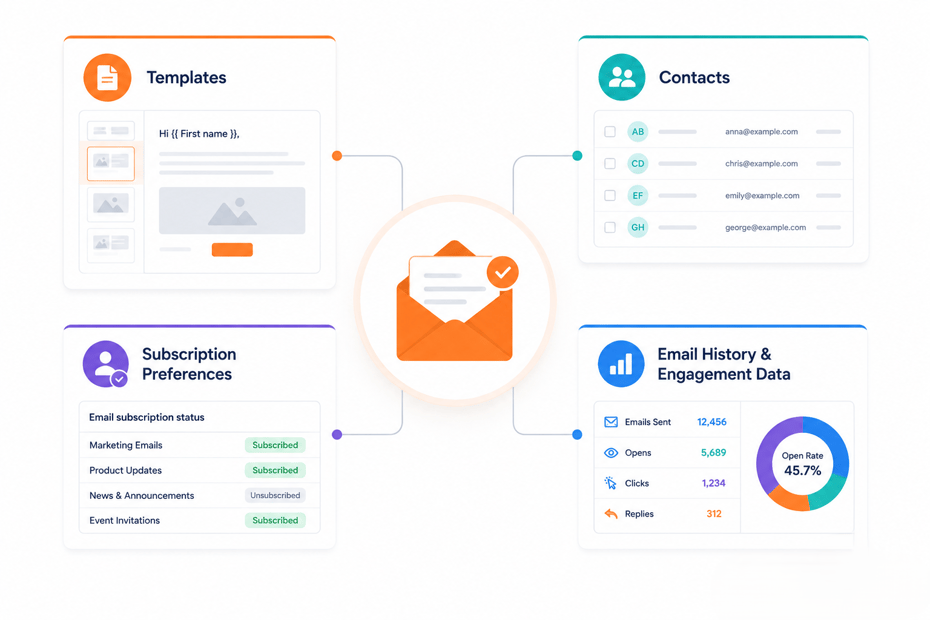
Before starting the migration, it's important to understand which email-related assets can be transferred directly and which may need to be recreated inside HubSpot.
Email Templates
Email templates can typically be migrated in one of two ways:
- Rebuilding templates using HubSpot's drag-and-drop email editor
- Importing custom HTML templates into HubSpot
The best approach depends on how the original templates were built and how much customization they contain.
Contact Lists
Contact lists can be imported into HubSpot using CSV files or migration tools.
Common list types include:
- Newsletter subscribers
- Leads
- Customers
- Event attendees
- Marketing-qualified leads
These lists often form the foundation of future segmentation and campaign targeting.
Subscription Preferences
Subscription status data is one of the most important assets to preserve.
Examples include:
- Opted-in contacts
- Unsubscribed contacts
- Email preferences
- Consent status
Failure to migrate this information correctly can create compliance and deliverability risks.
Email History & Engagement Data
Email opens, clicks, campaign activity, and engagement metrics are often requested during migration projects.
While HubSpot can store historical engagement information, marketing email performance data from another platform does not automatically become part of HubSpot's native email reporting.
This often requires a separate strategy for preserving historical metrics and engagement history.
Pre-Migration Email Audit
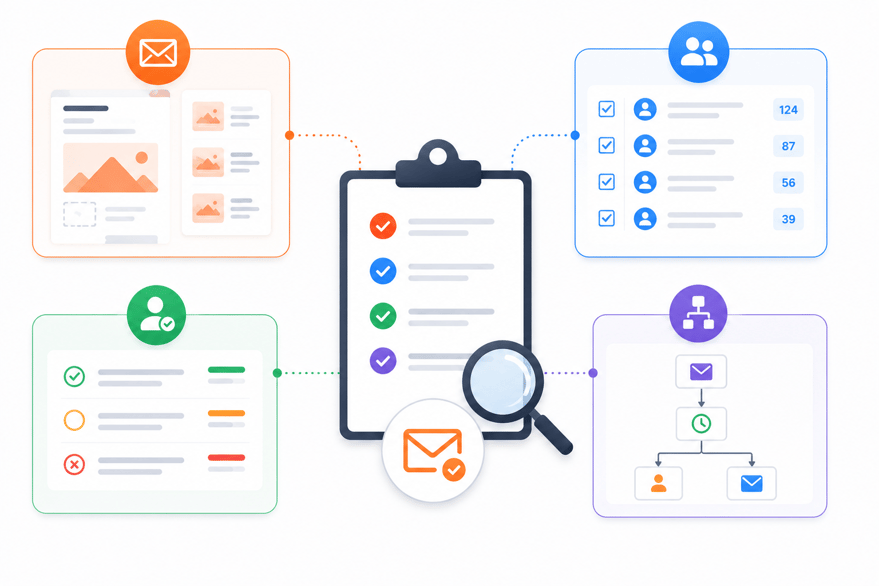
A successful email migration starts with understanding what currently exists. Before moving any data into HubSpot, perform an audit of your email assets.
Audit Email Templates
Create an inventory of all active templates.
Review:
- Newsletter templates
- Promotional templates
- Automated email templates
- Transactional email templates
- Custom HTML templates
Not every template needs to be migrated. Focus on assets that support active marketing programs.
Audit Contact Lists
Review all lists currently used for marketing activities.
Document:
- List names
- Contact counts
- Segmentation criteria
- Data sources
- Last usage date
This helps determine which lists should be recreated inside HubSpot.
Audit Subscription Types
Review how email preferences are currently managed.
Examples include:
- Marketing communications
- Product updates
- Event communications
- Customer communications
- Newsletter subscriptions
These preferences will need to be mapped to HubSpot subscription types later in the migration process.
Audit Email Automations
Document any workflows that rely on email assets.
Examples include:
- Welcome email sequences
- Lead nurturing campaigns
- Re-engagement campaigns
- Customer onboarding emails
Understanding these dependencies helps ensure critical marketing programs continue functioning after migration.
Step 1: Migrate Email Templates to HubSpot

Once the audit is complete, the first migration task is moving email templates into HubSpot. The goal is not simply to recreate the design, but to ensure templates remain functional, responsive, and compatible with HubSpot personalization and reporting features.
Rebuild Drag-and-Drop Templates
Most email platforms use proprietary builders, which means drag-and-drop templates cannot usually be imported directly into HubSpot.
Instead, recreate active templates using HubSpot's email editor.
Review:
- Layout structure
- Branding elements
- Header and footer sections
- CTA placement
- Mobile responsiveness
This is also a good opportunity to remove outdated design elements and standardize email branding.
Screenshot Opportunity: HubSpot Marketing Email Editor
Import HTML Email Templates
If your existing emails were built using custom HTML, they can often be migrated into HubSpot with fewer modifications.
Before importing HTML templates:
- Review inline CSS
- Validate image URLs
- Remove unsupported code
- Test responsiveness
Complex templates may require minor adjustments to ensure they render correctly within HubSpot.
Validate Personalization Tokens
Most email platforms use their own personalization syntax.
Examples include:
|
Platform |
Example Token |
|
Mailchimp |
|FNAME| |
|
ActiveCampaign |
%FIRSTNAME% |
|
HubSpot |
There |
Before publishing templates, review all personalization fields and map them to the correct HubSpot contact properties.
Common examples include:
- First Name
- Company Name
- Job Title
- Contact Owner
- Custom Properties
Incorrect token mapping can result in broken personalization or blank values within emails.
Test Email Rendering
After migration, every template should be tested before being used in production.
Review:
- Desktop rendering
- Mobile rendering
- Dark mode compatibility
- Personalization output
- CTA functionality
- Image loading
Send internal test emails to multiple devices and email clients to identify any rendering issues before launch.
A template migration should only be considered complete when the design, personalization, and rendering behavior have been validated successfully.
Step 2: Import Contact Lists to HubSpot
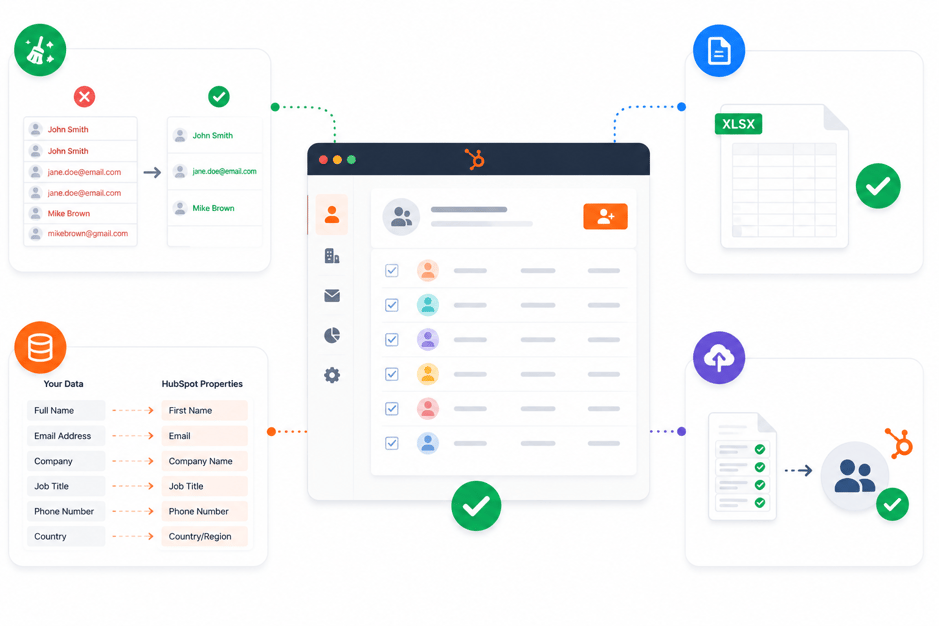
With templates in place, the next step is migrating the audiences that will receive your campaigns. This stage requires careful preparation because list quality directly impacts deliverability, segmentation, and campaign performance.
Clean & Deduplicate Contacts
Before importing any contacts into HubSpot, review the source data for quality issues.
Remove:
- Duplicate contacts
- Invalid email addresses
- Spam submissions
- Inactive records
- Test contacts
Importing unclean data can negatively impact reporting and future marketing campaigns.
Prepare Import Files
Most email migrations use CSV files for contact imports.
A typical import file may include:
- Email Address
- First Name
- Last Name
- Company Name
- Lifecycle Stage
- Lead Source
- Subscription Status
Standardize formatting before import to reduce mapping issues.
Map Contact Properties
During import, map each column to the appropriate HubSpot property.
Pay special attention to:
- Custom properties
- Dropdown fields
- Date fields
- Checkbox properties
- Multi-select fields
Incorrect property mapping can affect segmentation, reporting, and automation.
Screenshot Opportunity: HubSpot Import Mapping Screen
Import Marketing Contacts
When importing contacts, determine which records should be designated as marketing contacts.
Review:
- Active subscribers
- Customers
- Prospects
- Event attendees
- Marketing-qualified leads
Separating marketing and non-marketing contacts helps maintain better contact management and cost control inside HubSpot.
Once the import is complete, review a sample of records to validate property values, ownership assignments, and subscription statuses before proceeding to the next stage.
Step 3: Migrate Subscription Preferences

Subscription preferences are one of the most critical components of an email migration. While templates and contact records can be recreated or reimported, losing subscription data can lead to compliance issues, deliverability problems, and poor customer experiences.
Create HubSpot Subscription Types
Before importing preference data, configure your subscription types inside HubSpot.
Examples include:
- Marketing Emails
- Newsletter Updates
- Product Announcements
- Event Communications
- Customer Communications
Your subscription structure should reflect how contacts currently manage their email preferences.
Screenshot Opportunity: HubSpot Subscription Types Settings
Map Existing Opt-In Statuses
Review how subscription consent is stored in your current platform.
Common examples include:
- Subscribed
- Unsubscribed
- Double Opt-In Confirmed
- Pending Confirmation
- Suppressed Contacts
Document how each status will be mapped to HubSpot before importing any data.
This prevents inconsistencies between your previous platform and HubSpot.
Preserve Unsubscribed Contacts
One of the biggest migration mistakes is importing only active subscribers while excluding unsubscribed contacts.
Unsubscribed contacts should also be migrated so that their preferences continue to be respected.
Review:
- Global unsubscribes
- List-specific unsubscribes
- Bounce suppressions
- Compliance-related opt-outs
Removing these records from the migration can create compliance risks and increase the likelihood of accidentally emailing contacts who previously opted out.
Validate Subscription Settings
After migration, test a sample of contacts to ensure subscription statuses were imported correctly.
Verify:
- Active subscribers remain subscribed
- Unsubscribed contacts remain unsubscribed
- Preference centers function correctly
- Subscription types display correctly on contact records
A subscription migration should only be considered complete once consent data and communication preferences have been validated successfully.
Step 4: Preserve Email History & Engagement Data
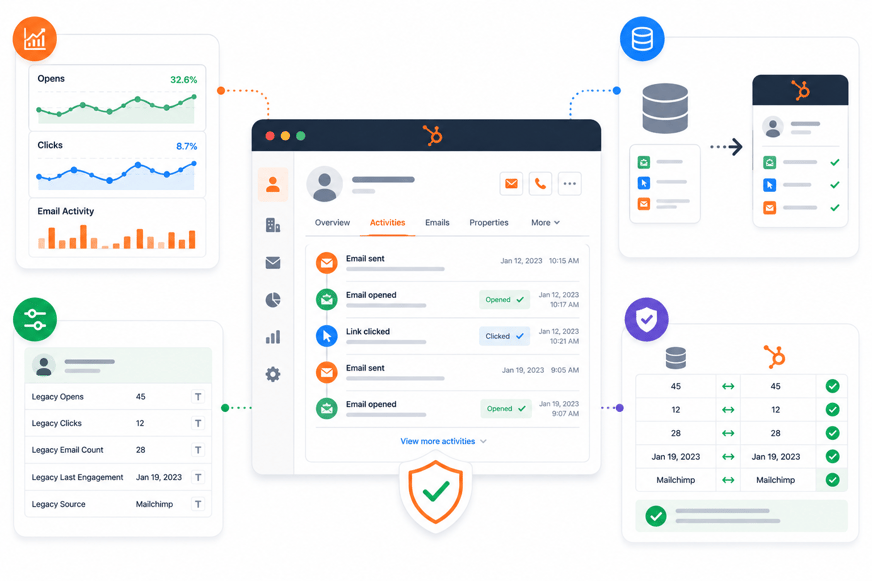
Many businesses want to preserve historical email activity when moving to HubSpot. However, it's important to understand what can realistically be migrated and how historical engagement should be handled.
Understand HubSpot Email Activity Limitations
Marketing email performance data from another platform does not automatically become part of HubSpot's native email reporting.
Examples include:
- Historical opens
- Historical clicks
- Campaign performance reports
- Email revenue attribution
These metrics typically remain in the source platform unless they are migrated separately.
Store Historical Engagement Data
If historical engagement data is important for sales, marketing, or reporting, consider importing key metrics into HubSpot as custom properties.
Common examples include:
- Total Emails Sent
- Total Opens
- Total Clicks
- Last Email Open Date
- Last Email Click Date
This allows teams to retain valuable engagement context without relying on the previous platform.
Create Custom Properties for Legacy Metrics
Create dedicated properties before importing historical engagement data.
Examples:
|
Property Name |
Type |
|
Historical Opens |
Number |
|
Historical Clicks |
Number |
|
Last Email Open Date |
Date |
|
Last Email Click Date |
Date |
Using dedicated properties keeps historical metrics separate from HubSpot-generated engagement data.
Validate Historical Data
After importing legacy metrics, review a sample of contacts and compare values against the source platform.
Validate:
- Engagement totals
- Date fields
- Contact associations
- Property mappings
The goal is not to recreate historical reporting inside HubSpot, but to preserve the customer engagement context that teams may need for segmentation, sales outreach, and future marketing decisions.
Step 5: Rebuild Lists & Segmentation
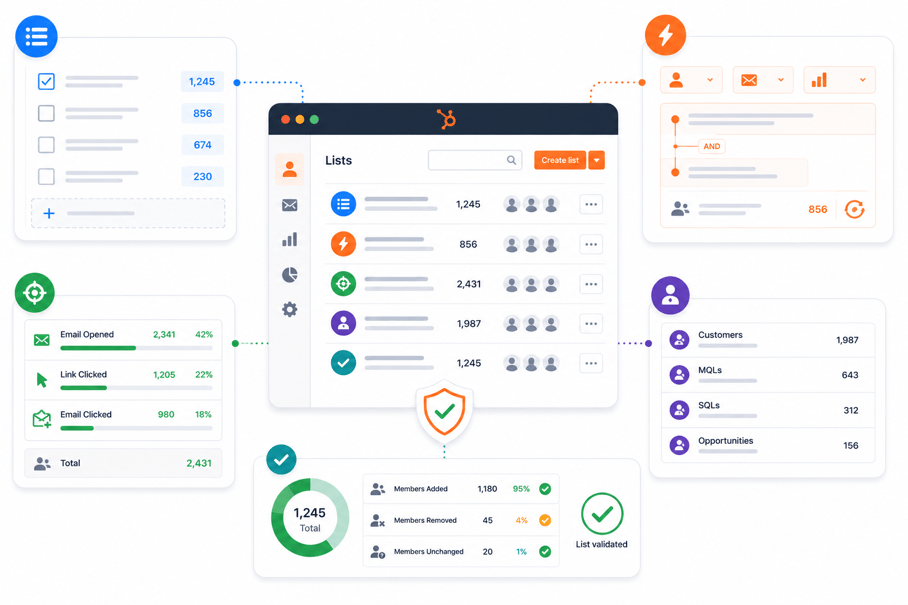
After contacts and subscription preferences have been migrated, the next step is rebuilding the audience segments that power your marketing campaigns. This ensures future emails, workflows, and reporting continue targeting the right contacts.
Static Lists
Static lists contain a fixed set of contacts and do not update automatically.
Common examples include:
- Event attendees
- Webinar registrants
- Trade show leads
- Imported customer groups
Review your previous platform and recreate any static lists that are still used for marketing campaigns or reporting.
Active Lists
Active lists automatically update when contacts meet specific criteria.
Examples include:
- Marketing Qualified Leads
- Contacts from specific industries
- Contacts assigned to a particular owner
- Customers within a certain lifecycle stage
These lists should be rebuilt using HubSpot filters and contact properties.
Screenshot Opportunity: HubSpot Active List Builder
Engagement-Based Segments
Many marketing teams rely on engagement data for campaign targeting.
Examples include:
- Contacts who opened an email in the last 90 days
- Contacts who clicked a campaign link
- Recently engaged subscribers
- Re-engagement audiences
Review the segmentation logic used in your previous platform and recreate it using HubSpot engagement filters where possible.
Customer Segments
Customer segmentation often supports upselling, onboarding, retention, and lifecycle marketing campaigns.
Common segments include:
- Active customers
- Trial users
- Churned customers
- High-value accounts
- Product-specific customers
Validate that the properties used for customer segmentation were migrated correctly before rebuilding these audiences.
Validate List Membership
Before launching campaigns, review a sample of contacts within each segment.
Validate:
- Contact counts
- Inclusion criteria
- Exclusion criteria
- Lifecycle stages
- Subscription statuses
A list migration is only successful when the correct contacts appear in the correct audiences.
Step 6: Validate Email Assets After Migration

Before sending any live campaigns, perform a final validation of the migrated email environment. This helps identify issues before they impact subscribers or campaign performance.
Test Contact Imports
Review a representative sample of imported contacts.
Verify:
- Contact properties
- Subscription statuses
- Lifecycle stages
- Ownership assignments
- Historical engagement data
Review Email Templates
Open each migrated template and confirm:
- Layout consistency
- Branding accuracy
- Image rendering
- CTA functionality
- Mobile responsiveness
Any template issues should be corrected before production use.
Validate Subscription Settings
Test subscription management from the contact record level.
Review:
- Subscription types
- Opt-in statuses
- Unsubscribe functionality
- Preference center behavior
This is particularly important for compliance and deliverability.
Send Test Campaigns
Before launching a live email campaign, send internal test emails.
Validate:
- Personalization tokens
- Subject lines
- Dynamic content
- Links
- Images
- Mobile rendering
Testing across multiple devices and inbox providers helps identify rendering issues that may not be visible inside the editor.
A successful email migration is not complete when the data is imported. It's complete when templates, audiences, subscription settings, and campaign functionality have all been validated successfully.
Common Email Migration Mistakes You Should Know
Even well-planned migrations can encounter issues if email assets are moved without proper validation. The following mistakes are among the most common causes of post-migration email problems.
Importing Unclean Contact Lists
Many organizations migrate every contact from their previous platform without reviewing data quality.
Common issues include:
- Duplicate contacts
- Invalid email addresses
- Spam submissions
- Inactive subscribers
- Outdated records
Poor-quality lists can negatively impact deliverability, reporting, and future campaign performance.
Losing Subscription Preferences
Subscription preferences should never be treated as optional migration data.
Failing to migrate:
- Opt-in statuses
- Unsubscribes
- Suppression lists
- Email preferences
can create compliance risks and damage sender reputation.
Ignoring Email Personalization Tokens
Personalization fields from one platform rarely transfer directly into HubSpot.
Without proper mapping, contacts may receive emails with:
- Blank names
- Missing company values
- Broken dynamic content
All personalization tokens should be reviewed and tested before launch.
Assuming Historical Engagement Data Will Migrate Automatically
Historical opens, clicks, and campaign performance data typically do not become part of HubSpot's native email reporting.
Businesses should determine in advance:
- Which engagement metrics need to be preserved
- Where those metrics will be stored
- How they will be used for future segmentation
Launching Campaigns Without Testing
A successful import does not guarantee a successful campaign.
Before sending live emails, test:
- Templates
- Subscription settings
- Segmentation
- Personalization
- Rendering
A small validation effort can prevent large-scale campaign issues.
HubSpot Email Migration Checklist
Use the following checklist before signing off on an email migration project.
Email Template Migration Check
- Active templates audited
- Templates rebuilt or imported
- Branding validated
- Personalization tokens mapped
- Email rendering tested
Contact List Migration Check
- Contact lists cleaned
- Duplicate contacts removed
- Contact properties mapped
- Marketing contacts identified
- Sample records validated
Subscription Validation Check
- Subscription types created
- Opt-in statuses mapped
- Unsubscribed contacts preserved
- Preference center tested
Historical Data Check
- Historical engagement requirements documented
- Legacy metrics imported (if required)
- Custom properties validated
Segmentation Validation Check
- Static lists recreated
- Active lists recreated
- Engagement segments validated
- Customer segments validated
Email Testing Check
- Internal test emails sent
- Mobile rendering validated
- Personalization tested
- CTA links verified
- Images validated
A migration should only be considered complete when templates, contacts, subscriptions, segmentation, and campaign functionality have all been reviewed successfully.
How We Handle Email Migration Projects
Our HubXpert email migration is treated as a marketing operations project rather than a simple contact import.
Our migration process typically includes:
- Email asset audit
- Contact list cleanup and deduplication
- Subscription preference mapping
- Template migration and testing
- Segmentation rebuild
- Historical data preservation planning
- Campaign validation
- Post-migration QA
This structured approach helps ensure marketing teams can continue running campaigns inside HubSpot without losing critical email assets, audience data, or subscription preferences.
Wrapping Up
Migrating email templates, contact lists and historical engagement data to HubSpot requires more than exporting and importing records. Templates must be rebuilt correctly, contact lists must be cleaned, subscription preferences must be preserved, and segmentation logic must be recreated.
When approached systematically, businesses can move their marketing operations into HubSpot while maintaining campaign continuity, data quality, and subscriber trust. The result is a cleaner, more scalable marketing foundation for future growth.
FAQs
Can I import email templates directly into HubSpot?
HubSpot supports importing HTML email templates, but drag-and-drop templates from other email platforms typically need to be rebuilt using HubSpot's email editor.
Will email engagement history migrate to HubSpot?
Historical opens, clicks, and campaign metrics do not automatically become part of HubSpot's native email reporting. Many organizations preserve these metrics using custom contact properties.
How do I import contact lists into HubSpot without creating duplicates?
Before importing, clean and deduplicate your contact lists, standardize contact data, and carefully map fields during the import process.
Do unsubscribed contacts need to be migrated to HubSpot?
Yes. Preserving unsubscribe and opt-out statuses helps maintain compliance and prevents accidentally emailing contacts who previously opted out.
Can I migrate active and static email lists to HubSpot?
Yes. Static lists can usually be recreated from imported contacts, while active lists should be rebuilt using HubSpot filters and segmentation rules.
What happens to email personalization tokens after migration?
Personalization tokens from other platforms do not automatically transfer to HubSpot. They should be reviewed and mapped to the appropriate HubSpot properties before sending campaigns.
Founder & CEO @ Hubxpert. My goal is to make every company using HubSpot succeed in their marketing organisation and automation.

Ratul Rahman
Table of Contents:

Subscribe to our newsletter

3D Web Design Templates & Examples You Can Reuse
Browse 3D web design templates and examples, plus where to find free downloads, and see how 3D web page design lifts a site without slowing the site down.

3D Web Design Tools & Software Compared for 2026
Compare 3D web design tools and web based 3D design software, and see where 3D models and 3D assets for web design fit your existing front-end build pipeline.

HubSpot Onboarding Cost: What the Fee Really Covers
See what HubSpot onboarding cost covers, how onboarding fees get quoted and how to compare implementation quotes line by line before you commit to a partner.

HubSpot Enterprise Onboarding (What Changes by Tier)
See how HubSpot enterprise onboarding differs from Professional and Starter, covering advanced onboarding scope, admin training and what each tier includes.

Best HubSpot CRM Implementation Consulting Agencies for B2B
Compare 6 HubSpot partners for B2B with pros, cons, and pricing. Learn how to judge companies offering HubSpot implementation services and spot red flags.

How to Build a HubSpot Implementation Plan That Holds Up
Follow a HubSpot implementation plan covering scoping, data cleanup and go-live. Includes an implementation checklist and a realistic 60-day timeline.
-
3D Web Design Templates & Examples You Can Reuse
hello
-
3D Web Design Tools & Software Compared for 2026
hello
-
HubSpot Onboarding Cost: What the Fee Really Covers
hello
-
HubSpot Enterprise Onboarding (What Changes by Tier)
hello
-
Best HubSpot CRM Implementation Consulting Agencies for B2B
hello
-
How to Build a HubSpot Implementation Plan That Holds Up
hello